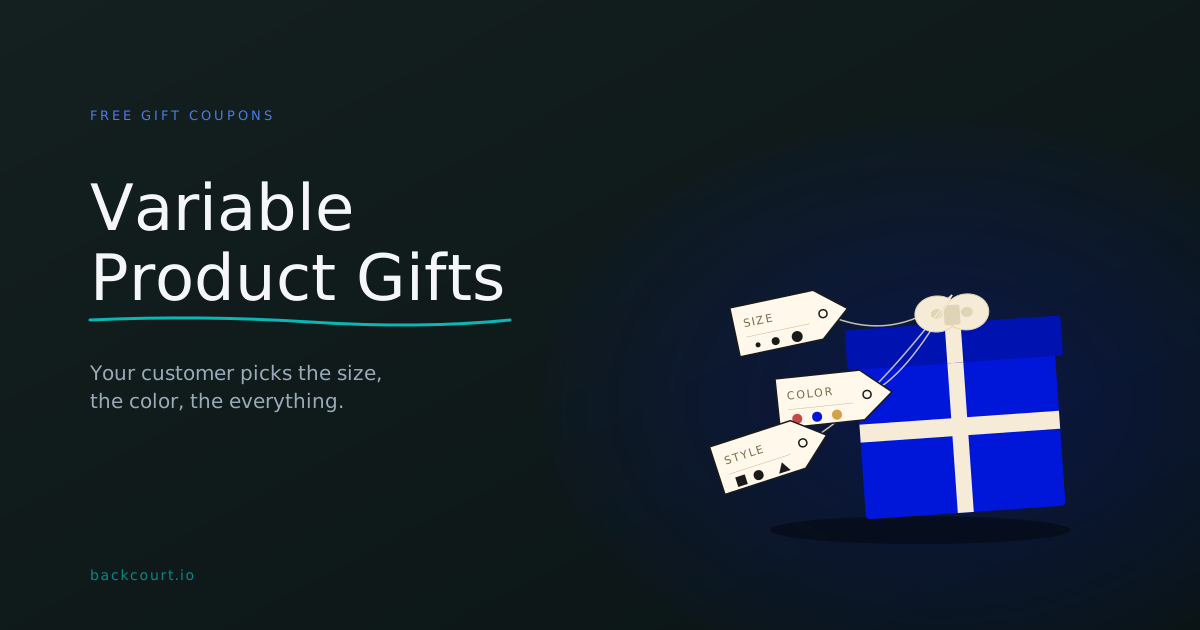
Variable Product Gifts: Let Customers Choose Their Free Gift Attributes
A customer redeems a free gift coupon and gets a free t-shirt at checkout. You stock it in five sizes and three colors. Which one do they get?
One option is to pick the variation yourself and hand it over. Sometimes that’s exactly what you want — a predetermined gift with no guesswork. But when the customer should choose, Free Gift Coupons handles that natively: when the gift is a variable product, the customer picks the size, color, or whatever else you’ve set up. No emails back and forth, no separate checkout step, no hoping you guessed correctly.
This guide walks through the three ways to configure a variable product gift, what each one looks like to your customer, and how the plugin keeps the order from leaving with an unselected gift.
Before You Start
You’ll need:
- A variable product configured in WooCommerce. Whichever attributes you want the customer to choose from (size, color, scent, etc.) need to exist as variations on the product. If you haven’t set up variable products before, see WooCommerce’s variable products documentation.
- The variable product itself, plus any specific variations you plan to give away, must be published, in stock, and have a price set. Free Gift Coupons sets the price to zero in the cart, but WooCommerce won’t let an unpurchasable product be added at all. Standard
is_purchasable()rules apply. - A working knowledge of how Free Gift Coupons are configured. If you’re brand new to the plugin, start with Creating Your First Free Gift Coupon and come back here.
Three Ways to Set It Up
When you add a gift to a Free Gift Coupon, the Free Gifts product search returns three kinds of things you can pick:
- The variable parent product itself (e.g. Cotton T-Shirt)
- A partially-defined variation with one or more attributes set to Any (e.g. Cotton T-Shirt: Size M, Any color)
- A specific, fully-defined variation (e.g. Cotton T-Shirt: Size S, Teal)
Each one produces a different experience for your customer. The one you pick should match how much choice you want to give them.
Approach 1: Let the Customer Pick Everything
Pick this when the customer should choose all attributes themselves. Useful for swag where any combination of size, color, or style is fine to give away.
How to set it up:
- Edit your Free Gift coupon under Marketing → Coupons.
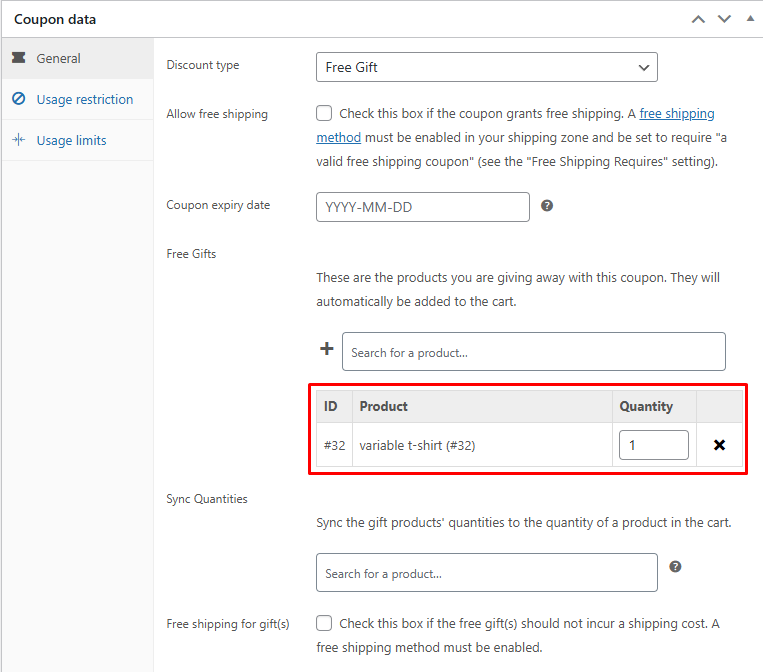
- In the Free Gifts field, search for the variable product by name.
- Select the parent product from the results. It will appear without any variation attributes listed.
- Save the coupon.
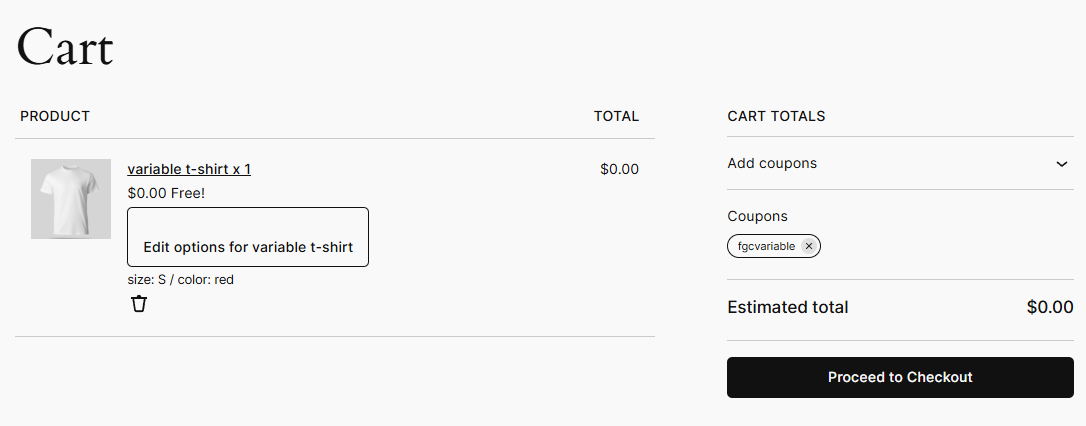
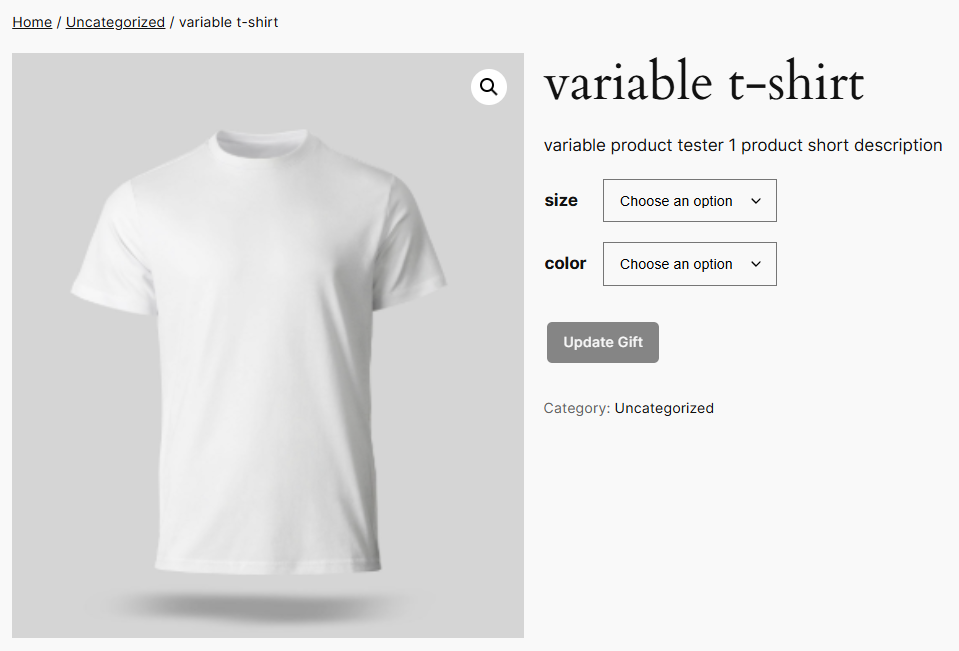
What the customer sees: The gift lands in their cart with a Choose options button. Clicking it takes them to the gift’s product page, where they pick attributes and confirm with the Update Gift button. Every attribute dropdown is open for them to set.
Approach 2: Lock Some Attributes, Let the Customer Pick the Rest
Pick this when you’ve decided on part of the gift (the color, say) but want the customer to choose the rest (the size).
How to set it up:
- On your variable product, make sure you have variations created with one or more attributes set to Any. For example, Color: Any, Size: M generates a variation that any color can resolve to.
- Edit your Free Gift coupon under Marketing → Coupons.
- In the Free Gifts field, search for the variable product. The results will include any partial variations you’ve created.
- Select the partially-defined variation (the one showing your locked attribute and Any for the rest).
- Save the coupon.
Note: The Any attribute setup happens on the variable product itself, in WooCommerce’s variations panel. Free Gift Coupons doesn’t add a setting for this; it reads what the variable product already supports.

What the customer sees: Same flow as Approach 1, with one difference: on the product page, locked attributes are hidden entirely from the chooser, and the customer only sees variations that match the locked values. If you locked Size to M, they see only the color selector, with no chance of accidentally picking sizes S or L.

Approach 3: Give a Specific Variation as the Gift
Pick this when the gift is a specific, predetermined variation. The customer gets exactly what you chose, with no decisions to make.
How to set it up:
- Edit your Free Gift coupon under Marketing → Coupons.
- In the Free Gifts field, search for the variable product.
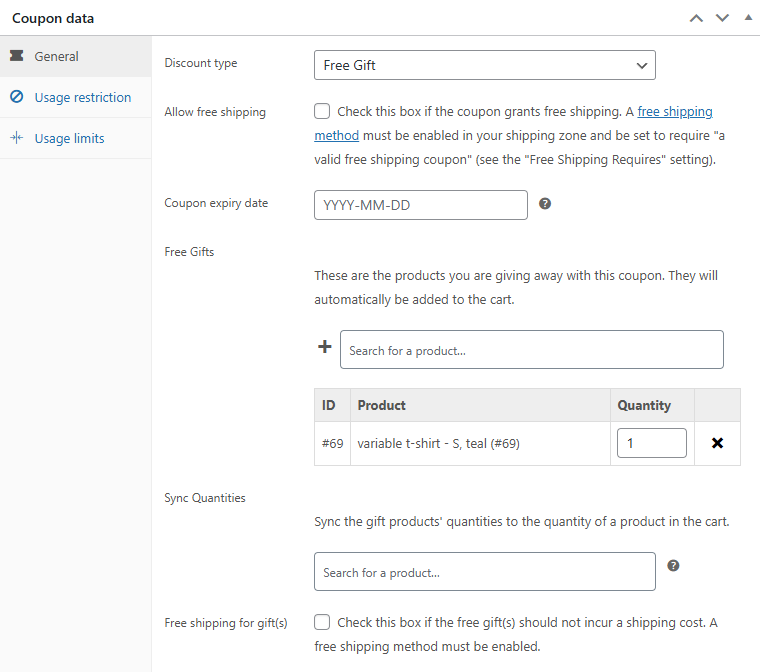
- Select the fully-defined variation from the results (e.g. S, Teal). All attribute values will be visible in the gift row.
- Save the coupon.
What the customer sees: The gift appears in their cart as a normal line item with no Choose options button. It’s just a free gift, like a simple product would be.
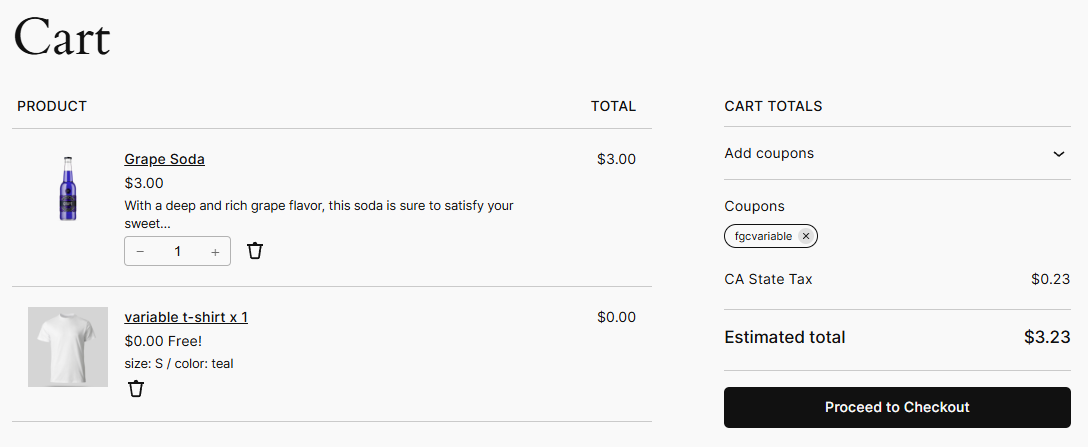
Tip: If you want the gift to be a specific variation but might change it later, this is the cleanest setup. It also avoids any chance of a customer skipping a required choice, since there’s nothing to choose.
What Your Customer Actually Sees
The cart-side flow is the same for approaches 1 and 2 (approach 3 has no chooser, so this section doesn’t apply to it):
- Coupon is applied. The gift product appears in the cart automatically, priced at Free!, with a Choose options button.
- Customer clicks the button. They’re taken to the gift’s product page. The variation dropdowns are visible, and an Update Gift button replaces the usual Add to Cart button.
- Customer makes selections and clicks Update Gift. They’re returned to the cart with the chosen variation applied. The gift line shows the selected attributes, and the price stays at zero.
- Customer can re-open the chooser at any time by clicking Choose options again. The selection isn’t locked once made.
Any other items, totals, or coupons they’ve already configured in the cart are preserved when they come back from the product page. The only thing that changes is the gift’s selected variation.
Things Worth Knowing
Quantity stays locked
On the product page’s gift-editing view, the quantity input is locked at whatever quantity the gift is configured for. Customers can’t bump up a “1 free shirt” gift to 5 by switching variations.
Checkout is blocked if no choice is made
If the customer tries to check out with an unselected variable gift in their cart, WooCommerce shows an error notice listing the gifts that need attention, with links straight back to the chooser:
You have not selected options for the following gift items: “Cotton T-Shirt”
This runs on the standard woocommerce_check_cart_items hook, so it fires before payment is processed. The order can’t slip through with an unconfigured gift.
The unpurchasable check is real
If the variable product (or any of its variations you might give away) isn’t published, runs out of stock, or is missing a price, WooCommerce’s standard is_purchasable() check will block it from being added as a gift. The plugin shows an admin warning at coupon save time, and a frontend notice if a customer hits the issue. There’s no “skip the price” workaround.
Classic shortcode cart behaves differently
If your store uses the classic woocommerce_cart shortcode (instead of the default block-based cart), the variation chooser renders inline as a new cart row beneath the gift, rather than redirecting to the product page. The setup and the final result are identical, so nothing changes in how you configure your coupons. It just means your customers never leave the cart to pick their options. Most modern WooCommerce stores use the block-based cart by default, but if you’ve intentionally switched to the classic cart, this is what your customers will see.
The mini cart doesn’t host the chooser
Whichever cart type you use, the mini cart (the side drawer or header widget) doesn’t render the chooser or show the Choose options button. A customer with an unselected variable gift will need to open the full cart page to complete the setup. The checkout-blocking notice kicks in there if they try to proceed without picking.
What’s Next?
Variable product gifts are one piece of what Free Gift Coupons can do. Here are some related directions worth exploring:
- Set a minimum cart value before the gift kicks in. How to Set a Minimum Purchase for Free Gift Coupons walks through making the gift conditional on a spend threshold.
- Combine your gift with a discount, or sync gift quantities to required products. Free Gift Coupons supports combo coupons (a free gift paired with a percentage or fixed discount on the same coupon), and the Sync Quantities field can multiply the gift quantity based on cart contents (e.g. “free hat per t-shirt”). Both are covered in the official Free Gift Coupons documentation, and variable gifts work with both setups just as simple ones do.
If you haven’t picked up Free Gift Coupons yet, you can grab it at woocommerce.com/products/free-gift-coupons. Questions about a specific setup? Open a support ticket and we’ll dig in with you.