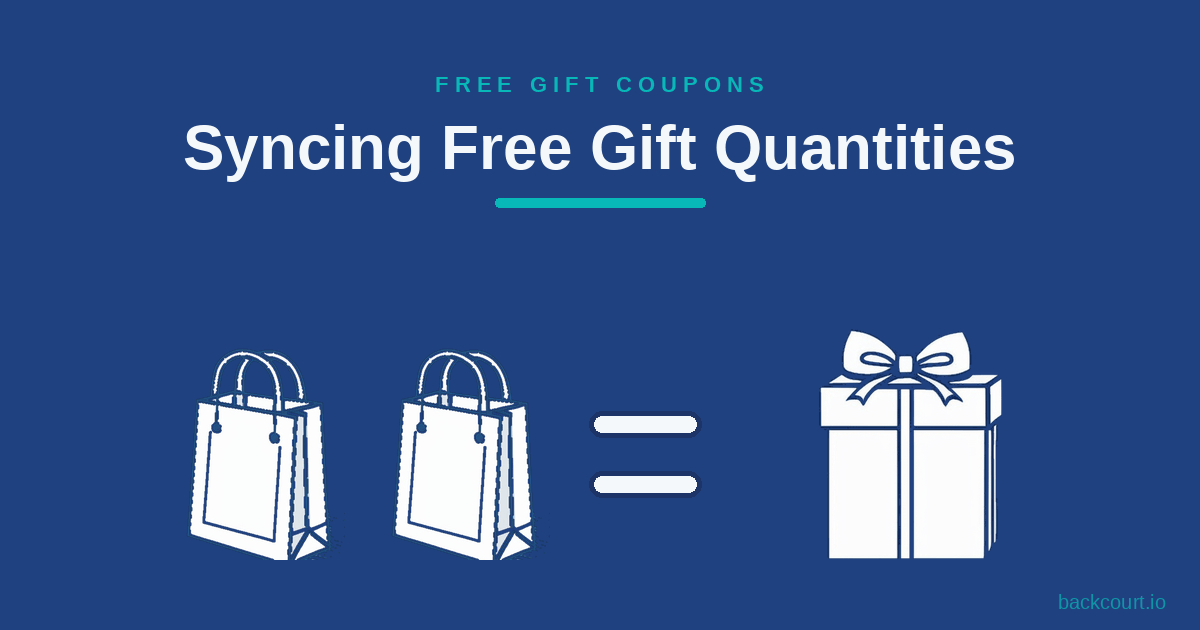
Syncing Free Gift Quantities to Purchase Quantities
TL;DR: To make a free gift scale with how much a customer buys, create a Free Gift coupon in Free Gift Coupons, add your gift product, then choose a product in the Sync Quantities field. The gift quantity now matches the cart quantity of that synced product: buy three, get three free. Set the gift’s Quantity to a higher number to give multiple gifts per item purchased.
Say every bottle of Grape Soda you sell comes with a free Orange Soda. A customer who buys three bottles should get three free sodas, not one. By default a Free Gift coupon adds a fixed number of gifts no matter how much the customer buys, so that promotion needs one extra setting to work the way shoppers expect.
Free Gift Coupons has that setting built in. The Sync Quantities field ties the gift count to the quantity of a product already in the cart, so the free gift grows with the order automatically. We’ll set up the Grape Soda promotion below, then show you how to give more than one gift per item.
What you’ll need
- WooCommerce with Free Gift Coupons installed and active
- A product to give away as the gift (published, in stock, with a price set)
- The product whose purchase quantity should drive the gift count
- WordPress 6.2 or newer, WooCommerce 8.2 or newer, PHP 7.4 or newer
Note: The gift product needs a price even though customers never pay it. Free Gift Coupons overrides the price to $0.00 in the cart, but WooCommerce still requires the product to be purchasable, which means published, in stock, and priced.
Step 1: Create the Free Gift coupon (~3 minutes)
- Go to Marketing → Coupons and select Add new coupon. (On older WooCommerce versions, coupons live under WooCommerce → Coupons.)
- Enter a Coupon code, for example
freesoda. - In the Coupon data panel, set Discount type to Free Gift.
- In the Free Gifts field, search for your gift product and select it. For this example, that’s Orange Soda. The field description reads, “These are the products you are giving away with this coupon. They will automatically be added to the cart.”
- Leave the gift’s Quantity at 1 for now. With Sync Quantities on, this number becomes the gift count per item purchased, and we’ll come back to it in Step 4.
Step 2: Sync the gift to a purchase quantity (~1 minute)
Directly below the Free Gifts table is the Sync Quantities field, described as “Sync the gift products’ quantities to the quantity of a product in the cart.”
Search for the product whose quantity should drive the gift count, and select it. For the Grape Soda promotion, that’s Grape Soda. Now the number of free Orange Sodas always matches the number of Grape Sodas in the cart.
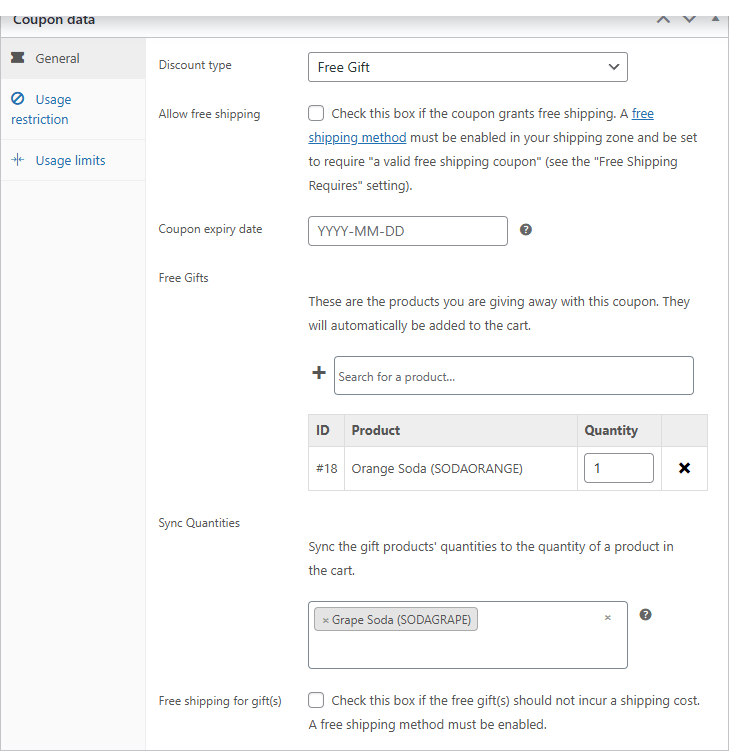
Important: Choosing a synced product adds it to your coupon’s required products automatically. The field’s help text spells this out: “This adds the Synced Product to the required ‘Usage restriction > Products’ List, if it is not already added. If changed, the previously synced product remains in your required products list.” In practice, the coupon only applies while the synced product is in the cart, which is exactly what you want for a per-product gift. If you later change the synced product, remove the old one from Usage restriction → Products by hand, because it stays in the list.

Select Publish to save the coupon.
Step 3: Confirm the sync in the cart (~2 minutes)
Test the promotion the way a customer experiences it. Add three Grape Sodas to the cart, then apply the freesoda coupon.
The cart now holds three Grape Sodas at full price and three Orange Sodas marked Free! at $0.00. The gift line reads Orange Soda × 3, matching the three Grape Sodas exactly.
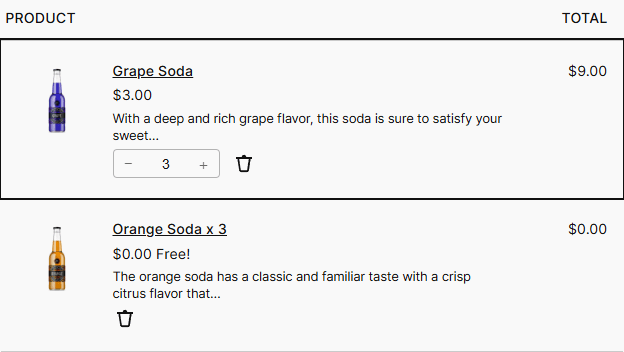
Change the Grape Soda quantity and the gift follows: two Grape Sodas yield two free Orange Sodas, ten yield ten. Customers can’t edit the gift quantity themselves, since the gift line has no quantity stepper, only a remove button.
Tip: The gift count recalculates when the coupon is applied. If you edit the coupon’s settings while it’s already sitting in a test cart, remove the coupon and apply it again to see the new numbers.
Step 4: Give multiple gifts per item (~1 minute)
The gift’s Quantity field, the one you left at 1 in Step 1, acts as a multiplier when Sync Quantities is on. The final gift count is the gift quantity times the synced product’s cart quantity.
Set Orange Soda’s Quantity to 2 and save. Now every Grape Soda earns two free Orange Sodas: three Grape Sodas produce Orange Soda × 6.
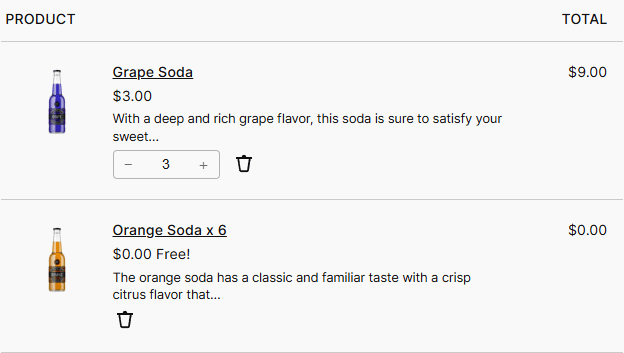
This is how you run “two free samples with every unit” style promotions. Quantity 1 gives one gift per item, quantity 3 gives three, and so on.
How it works
Sync Quantities reads the cart quantity of your synced product every time the cart recalculates, then sets the gift quantity to that number multiplied by the gift’s own Quantity value. Because the synced product is also a required product, removing it from the cart removes the coupon and its gift along with it. The two settings work together: the requirement keeps the coupon honest, and the sync keeps the gift count in step with the order.
The gift’s price is overridden to $0.00 in the cart, so the customer pays full price for the synced product and nothing for the gifts. Each gift is a real cart line item priced at zero rather than a label on the synced product, which is why the gift count can move independently as the cart changes.
Frequently asked questions
What does Sync Quantities actually do?
It matches the free gift quantity to the cart quantity of a product you choose. If a customer has four of the synced product in the cart and the gift quantity is 1, they receive four free gifts. The gift count updates automatically whenever the synced product’s quantity changes.
How do I give more than one free gift per item?
Set the gift’s Quantity in the Free Gifts table to the number you want per item. With Sync Quantities on, the gift count is that quantity times the synced product’s cart quantity. A gift quantity of 2 with three synced products in the cart produces six free gifts.
Can customers change how many free gifts they get?
No. The gift line in the cart has no quantity control, only a remove button. The count is driven entirely by the synced product’s quantity and the gift quantity you set, so customers can’t inflate it.
Does the coupon still apply if the synced product isn’t in the cart?
No. Selecting a synced product adds it to the coupon’s required products under Usage restriction → Products. The coupon only applies while that product is in the cart, and removing the product removes the gift.
Can I sync quantities on a combo coupon, not only a Free Gift coupon?
Yes. The Free Gifts and Sync Quantities fields appear on all of Free Gift Coupons’ supported discount types, including Percentage discount and Fixed cart discount. You can run a “20% off plus a synced free gift” promotion from a single coupon.
Why didn’t my cart update after I changed the coupon?
The gift count is calculated when the coupon is applied. If the coupon was already in a cart before you edited it, remove the coupon and apply it again to recalculate.
What’s next?
- Creating Your First Free Gift Coupon (Step-by-Step): the full walkthrough if you’re new to Free Gift Coupons
- How to Set a Minimum Purchase for Free Gift Coupons: require a spend threshold before the gift unlocks
- Variable Product Gifts: Let Customers Choose Their Free Gift Attributes: give a gift where the customer picks the size or color
- Free Gift Coupons documentation: the official setup reference
A synced gift turns a flat freebie into one that rewards bigger orders, with no manual quantity juggling on your side. If you don’t have the plugin yet, start with Free Gift Coupons, then add Sync Quantities to any gift you want to scale with the cart.