How to Set a Minimum Purchase for Free Gift Coupons
“Spend $50, get a free tote bag.” If there’s a single use case that accounts for more Free Gift Coupons support questions than anything else, it’s this one. And it’s one of the more satisfying configurations to set up: a few fields, a couple of minutes, and you have a spend incentive that adds itself to the cart automatically.
This guide walks through three setups in increasing complexity: a gift with a spend threshold, a “gift plus free shipping” deal, and a combo coupon that adds a percentage or fixed discount on top.
Before you start
- Free Gift Coupons installed and active on your store
- A gift product ready to go: published, in stock, and with a price set (the plugin overrides it to free in the cart, but WooCommerce requires a price for the product to be purchasable). If you haven’t done this yet, start with Creating Your First Free Gift Coupon (Step-by-Step) and come back here.
- For the free shipping setup in Step 3: a free shipping method enabled in WooCommerce → Settings → Shipping. WooCommerce’s free shipping documentation covers the setup if you need it.
Step 1: Create the coupon and add your gift product (~3 minutes)
Go to Marketing → Coupons and create a new coupon. Give it a code your customers will enter at checkout.
Under the General tab, set Discount type to Free Gift. The Free Gifts field appears below — search for and select the product you want to give away.
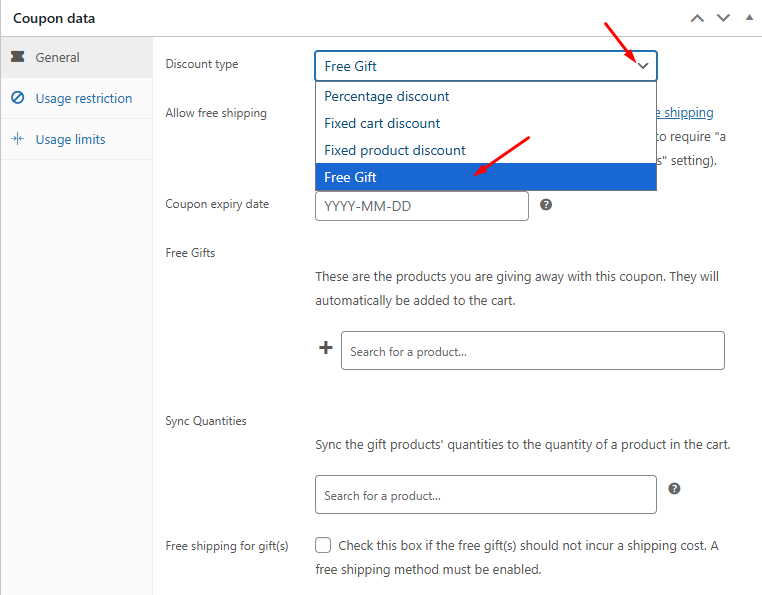
You can add multiple gift products if you want to give away more than one item, and you can set the quantity for each gift directly in the table.
Tip: If you’re building a combo deal (gift plus a discount), choose Percentage discount or Fixed cart discount as the Discount type instead. The Free Gifts field still appears, and you can configure both the discount and the gift in the same coupon. More on this in the “Adding a discount on top” section below.
Step 2: Set the minimum spend (~2 minutes)
Switch to the Usage restriction tab. The Minimum spend field is near the top — enter the cart total the customer needs to reach before the coupon applies.
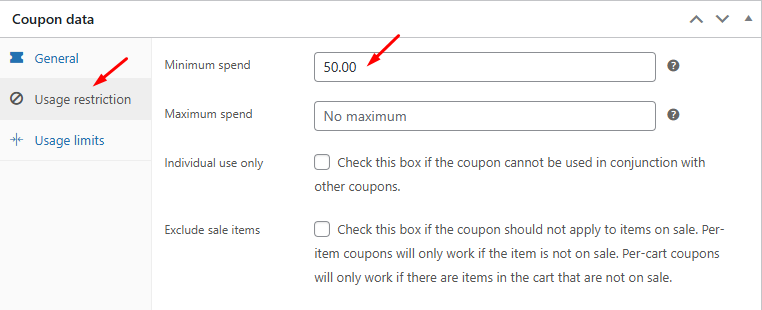
A few things worth knowing before you set the number:
- Tax is included in the calculation. WooCommerce uses the cart subtotal plus tax when checking the minimum, per the coupon management documentation. On a $50 threshold with 10% tax, a cart of $46 in products passes. If your store has tax enabled, factor this in when choosing your threshold.
- The gift itself doesn’t count. Gift items are priced at $0 in the cart and excluded from the spend check, so the customer needs to reach the threshold with their actual purchased items.
- Maximum spend also appears on this tab. If you want the gift to apply only within a specific range — say, orders between $50 and $200 — you can set a ceiling here as well.
Save or publish the coupon at this point and you have a working gift-on-threshold coupon. The next two sections cover optional additions.
Step 3: Adding free shipping to the deal (~3 minutes)
The “spend $50, get free shipping and a free gift” setup is the most common extension of the basic minimum spend coupon. It involves two separate checkboxes on the General tab, and understanding the difference between them matters.
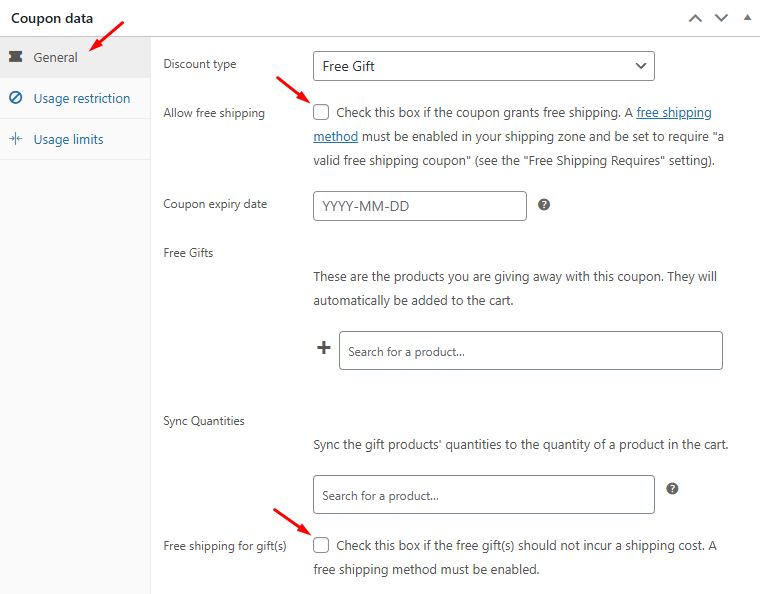
Allow free shipping is a standard WooCommerce coupon field. Checking it grants free shipping on the entire order when the coupon is applied. For this to work, you need a free shipping method configured to apply when “a valid free shipping coupon” is present. That setting lives in WooCommerce → Settings → Shipping → Free Shipping. See WooCommerce’s free shipping documentation for the full setup.
Free shipping for gift(s) is specific to Free Gift Coupons. Checking it means the gift product itself won’t generate a shipping cost. This requires any free shipping method to be enabled — it doesn’t need to be tied to coupons specifically.
For the “spend $50, get free shipping and a gift” configuration:
- On the General tab, check Allow free shipping
- In WooCommerce → Settings → Shipping → Free Shipping, confirm the method is set to apply with “a valid free shipping coupon”
- On the Usage restriction tab, set Minimum spend to your threshold
Checking Free shipping for gift(s) is optional in this scenario. When the entire order ships free because of the coupon, the gift ships free as part of that. Free shipping for gift(s) becomes relevant when you want the gift to ship free without making the entire order free — for example, if you offer the gift alongside a paid shipping method.
Adding a discount on top of the gift (~3 minutes)
You don’t need a second coupon to pair a gift with a percentage off or a fixed cart discount. The Free Gifts field appears for all supported coupon types, not just the Free Gift discount type.
For a “spend $50, get 15% off your order and a free gift” coupon:
- Set Discount type to Percentage discount
- Set Coupon amount to
15 - Add your gift product in the Free Gifts field
- Switch to Usage restriction and set Minimum spend to
50
That’s the complete coupon. When a customer applies the code, WooCommerce applies the 15% discount to their order and Free Gift Coupons adds the gift to their cart.
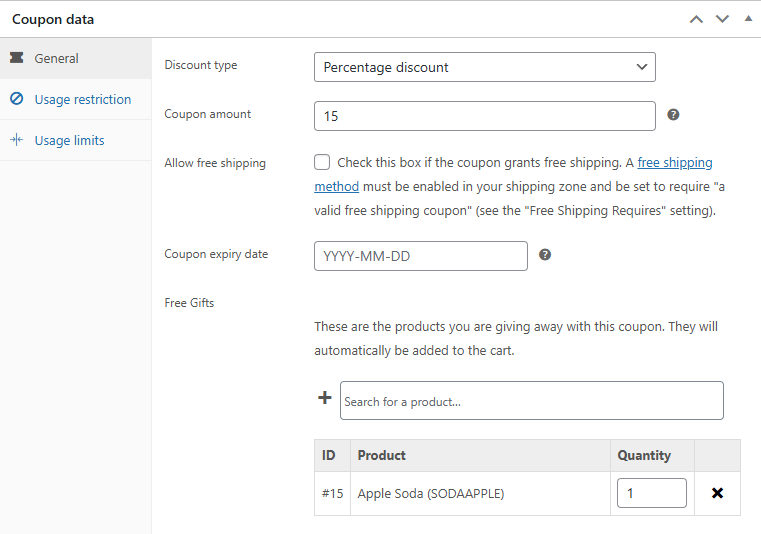
The same approach works with Fixed cart discount — set the discount amount, add the gift, set your threshold. Fixed product discount also supports it, though that type applies per item to specific products, so it’s a less common pairing.
Note: The Free Gift discount type is for gift-only coupons and has no Coupon amount field. For any combination deal, start with Percentage discount or Fixed cart discount and add the gift from there.
What’s Next?
- If you’re setting up your first Free Gift Coupon from scratch, Creating Your First Free Gift Coupon (Step-by-Step) covers the full product setup and coupon configuration
- For the complete list of WooCommerce coupon restrictions — usage limits, customer email restrictions, product requirements — see Managing Coupons in WooCommerce
- Syncing Free Gift Quantities to Purchase Quantities — make the gift quantity scale automatically with how many items the customer buys.
- Free Gift Coupons is available on WooCommerce.com