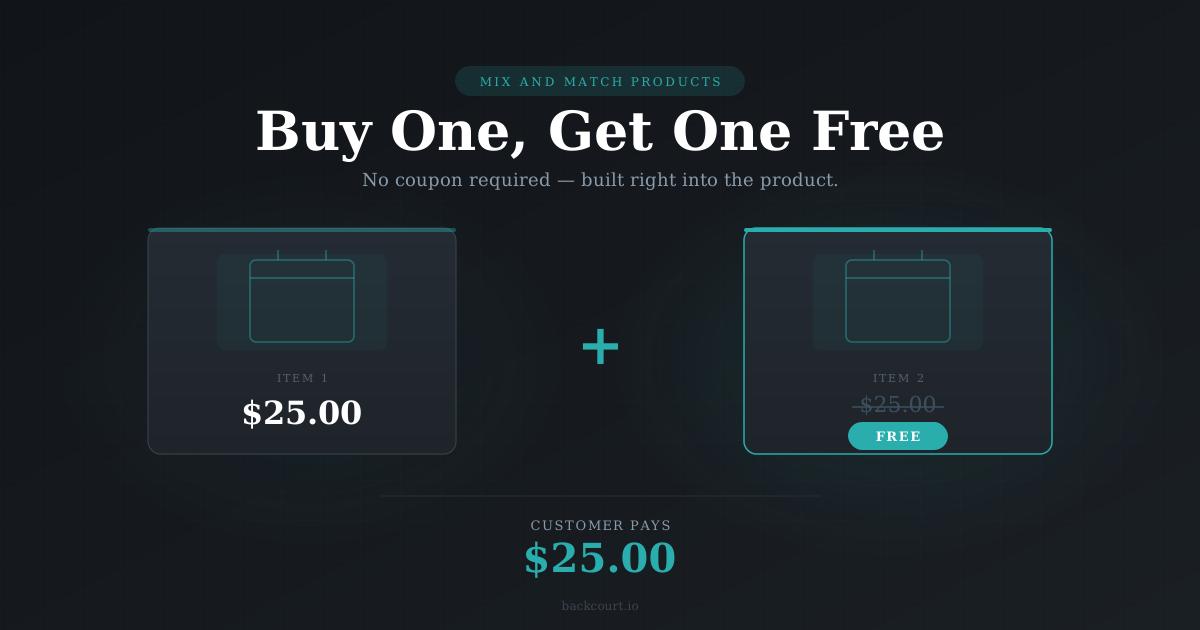
How to Create a BOGO (Buy One Get One) Deal with Mix and Match
Buy one, get one free is one of the most effective promotions in retail, and one of the least obvious to set up in WooCommerce. Most approaches lean on coupons, pricing rules, or third-party plugins. With Mix and Match Products, there’s a more direct path: you build the BOGO into the product itself.
The idea is simple. You create a container that holds exactly two items, set the price to what one item costs, and publish. Customers fill the container, pay the container’s fixed price, and the second item is free by definition. No coupon code needed, no rules to configure.
This approach works best when the child products in your container are the same price. If your products are different prices, there’s no clean BOGO equivalent in Mix and Match: a 50% per-item discount only works out to true buy-one-get-one math when both items cost the same.
Before You Start
- Mix and Match Products installed and active
- At least one published Simple product to serve as the child item, with a Regular price set
Note: Mix and Match only supports Simple products and specific Variations as child items. Variable, Grouped, and External product types can’t be added to a container.
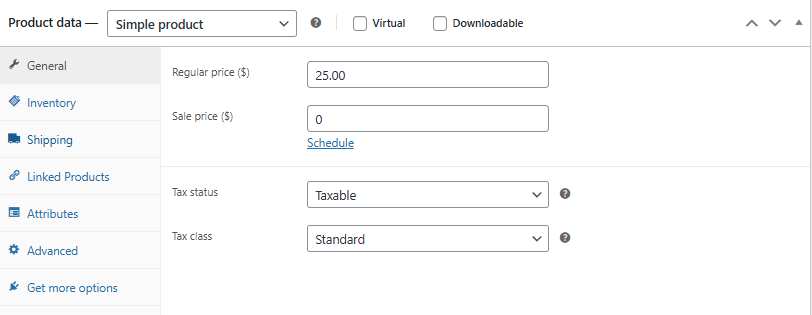
Step 1: Note Your Child Product’s Price (~1 minute)
You’ll need this number when you configure the container price in Step 4, so grab it now.
Go to Products → [your product] and check the Regular price field in the General tab. Write it down.
Step 2: Create the Mix and Match Product (~1 minute)
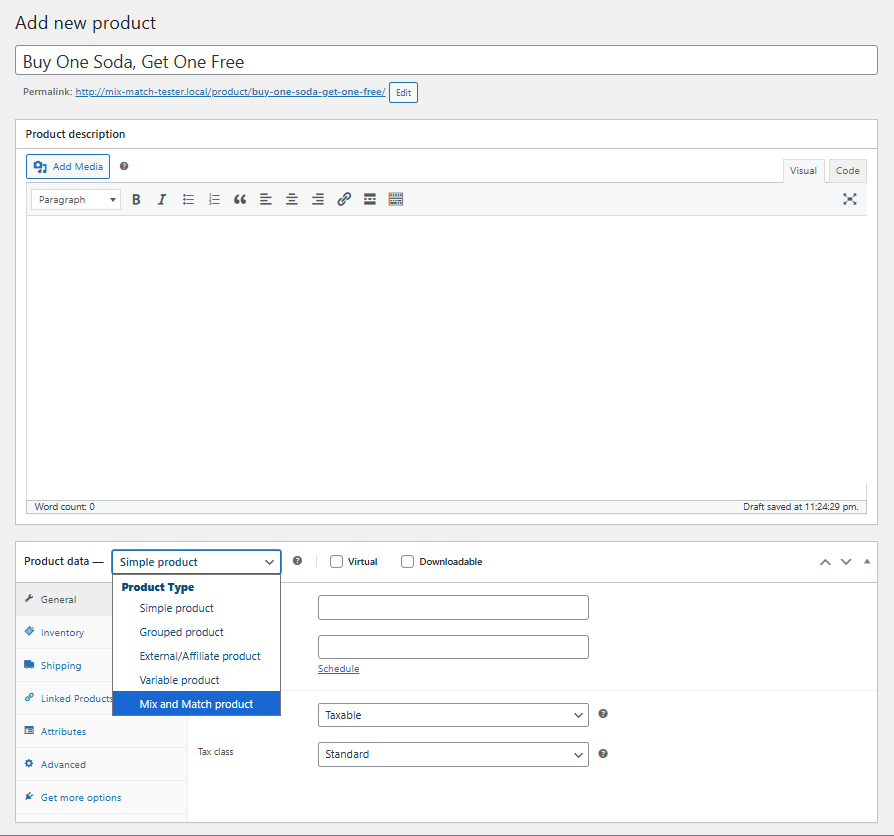
Go to Products → Add New. Give the product a name that communicates the promotion — something like “Buy One, Get One Free” followed by the product name, or whatever fits your store’s voice.
In the Product data panel, open the product type dropdown and select Mix and Match Products.
Step 3: Add Your Child Products (~1 minute)
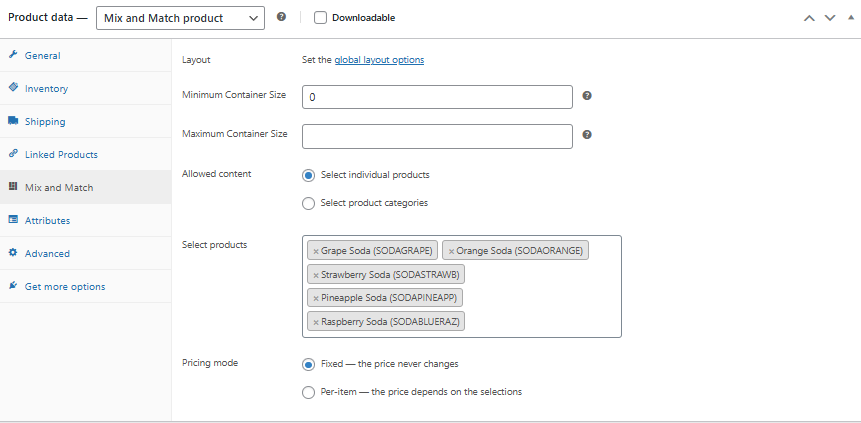
In the Mix and Match tab, find the Select products field. Search for and add the product or products the customer should be able to choose from.
For a single-SKU BOGO — “buy two of this one thing” — add just that product. Customers will select a quantity of two from it. For a “choose any two from this collection” deal, add all eligible products here.
Step 4: Set the Container Size to Exactly 2 (~1 minute)
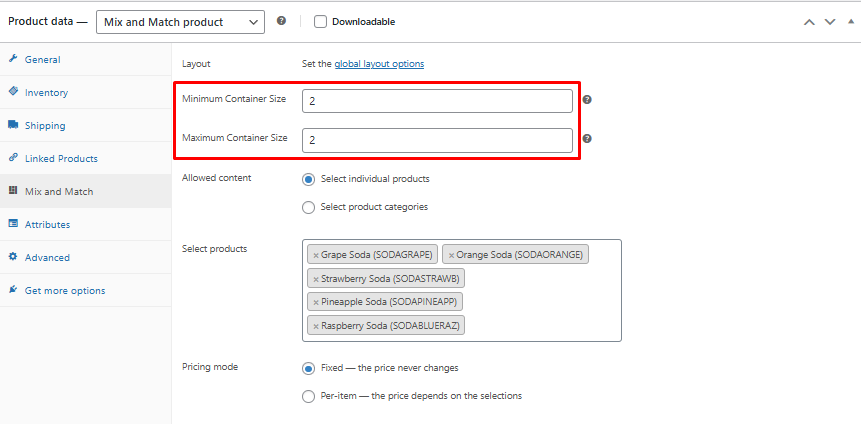
Still in the Mix and Match tab, set both size fields:
- Minimum Container Size: 2
- Maximum Container Size: 2
Matching them to the same value locks the container at exactly two items. Customers can’t check out with one, and they can’t add a third.
Step 5: Configure Pricing (~2 minutes)
This is where the BOGO logic lives, and it spans two tabs.
In the Mix and Match tab, find the Pricing mode field. Set it to Fixed — the price never changes.

Then switch to the General tab and set the Regular price to the price of one child item — the number you noted in Step 1.
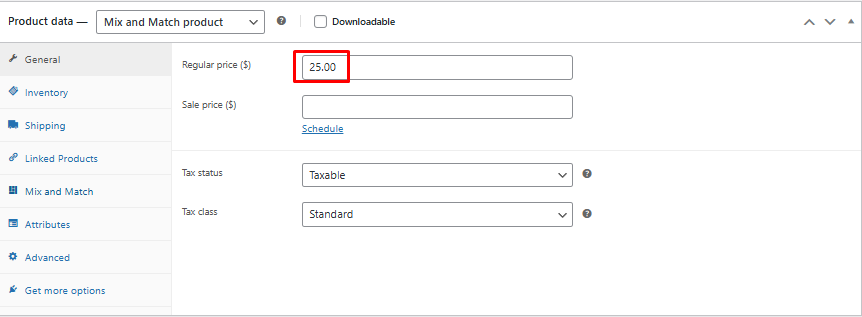
In fixed mode, the container charges the same amount regardless of what the customer selects. By setting that amount to a single item’s price, the second item has no additional cost.
Step 6: Publish and Test (~2 minutes)
Click Publish (or Update if you’re editing an existing product), then visit the product page on the front end. Work through the flow:
- The container starts empty, showing a “0 of 2” count
- Adding one child item brings it to 1 of 2
- Adding a second brings it to 2 of 2 and enables the add-to-cart button
- In the cart, the container appears as a single line item at the container price, with the selected child products listed beneath it as a summary — no child prices are shown separately
A Note on Automatic Free Gifts
The setup above requires the customer to actively choose both items — they browse, select, fill the container, and check out. If you want to give away a specific free product that the customer doesn’t have to pick themselves, that’s a different use case handled by Free Gift Coupons. With that plugin, a customer applies a coupon code and a pre-defined gift product is added to their cart automatically — no selection required on their end. The gift follows the coupon, not the purchase.
What’s Next?
- Fixed Price vs. Per-Item Pricing: Which Should You Choose? — A deeper look at how fixed and per-item pricing work in Mix and Match, and when to reach for each.
- How to Set Up Your First Mix and Match Product in 10 Minutes — If this is your first Mix and Match product and you want a broader walkthrough before diving into specific configurations.
- Creating Your First Free Gift Coupon (Step-by-Step) — For the automatic-gift-in-cart approach mentioned above.
Mix and Match Products is available on WooCommerce.com.