Variable Products in Mix and Match: What Works and What Doesn’t
Variable products are where a lot of Mix and Match setups hit their first real snag. You’ve got a hot sauce with a few flavours and intensities, you add it to a container, and it either doesn’t appear at all or doesn’t behave the way you expected. The cause is almost always the same: Mix and Match handles individual variations, not variable parents, and there are a couple of rules about which variations qualify.
This article walks through how variations actually flow through Mix and Match, what qualifies as a valid child product, and where the two Allowed content modes (Select individual products and Select product categories) diverge.
The short version
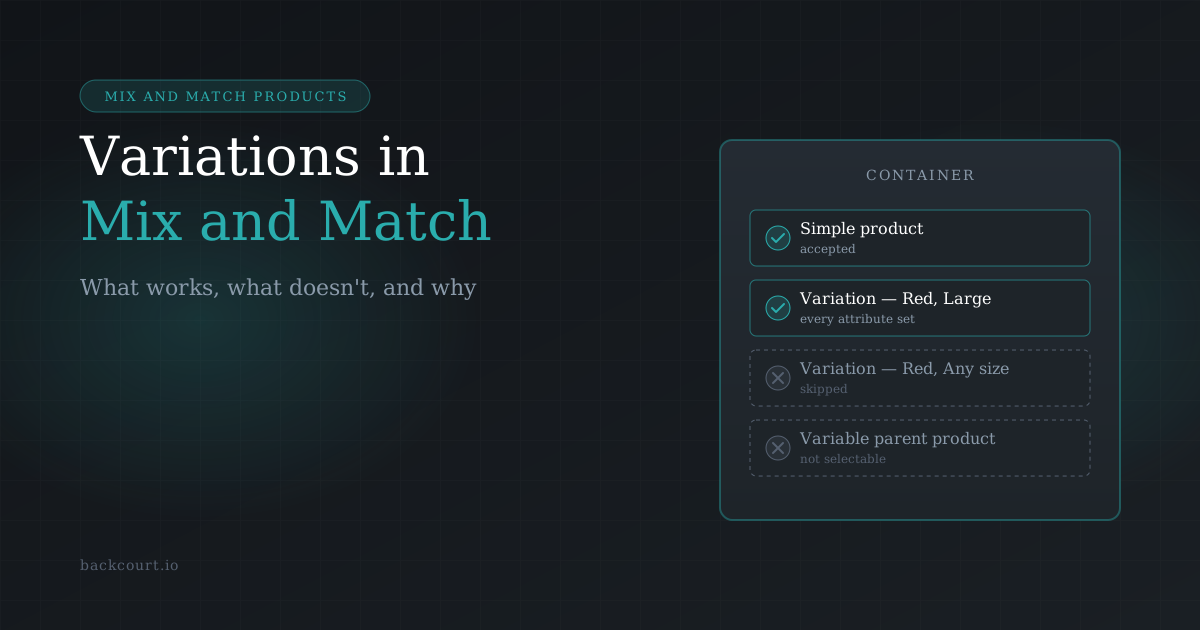
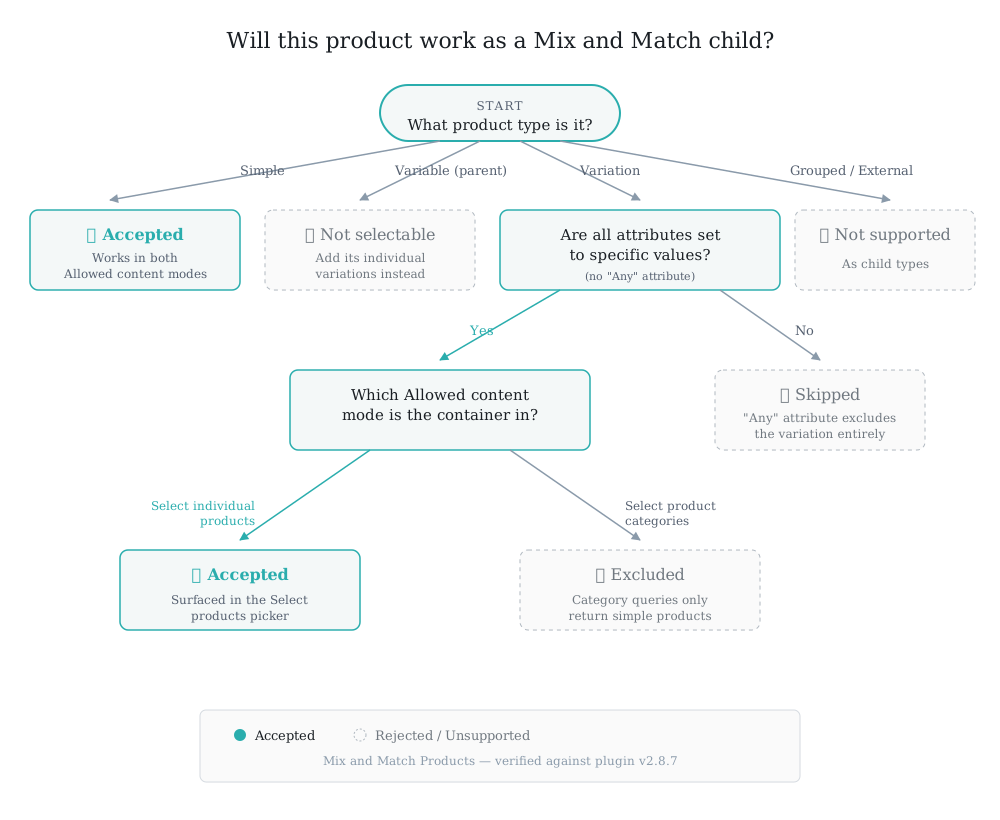
Mix and Match containers accept two child product types: Simple products, and Variations — but only variations with every attribute fully defined. Variable parent products themselves aren’t selectable as children. Grouped and External product types aren’t supported either.
That’s the whole rule. The rest of this article is about what that means in practice.
How Mix and Match thinks about child products
A Mix and Match container is built from child items. When you configure a container, you’re not adding variable products to it — you’re adding specific, purchasable things the customer can choose from.
For a Simple product, that’s straightforward: one product, one SKU, one line item. For a variable product, it’s a little different. A hot sauce with Flavour and Intensity attributes isn’t itself a purchasable thing in WooCommerce; the individual variations are. Mix and Match mirrors that distinction. It doesn’t list the variable parent in the container. It lists the variations underneath it, each one on its own.
This is why adding the hot sauce parent and expecting customers to pick flavour and intensity inside the container isn’t how it works. The customer is choosing a specific variation (say, Limey / Mild) when they select it, the attributes are baked in at the container level.
Select individual products mode: variations work, with one rule
When a container’s Allowed content is set to Select individual products, the picker that appears below (labeled Select products) returns both simple products and individual variations. You’ll see entries like “Hot Sauce — Limey, Mild” and “Hot Sauce — Limey, Medium” as distinct options to add to the container.

This is usually what store owners want when they reach for variable products: let customers build a four-pack where each slot is a specific flavour and intensity combination. Add the specific variations you want to offer, and they’ll appear as selectable children.
The “any” attribute rule
There’s one catch, and it’s the source of most “variations not appearing” tickets.
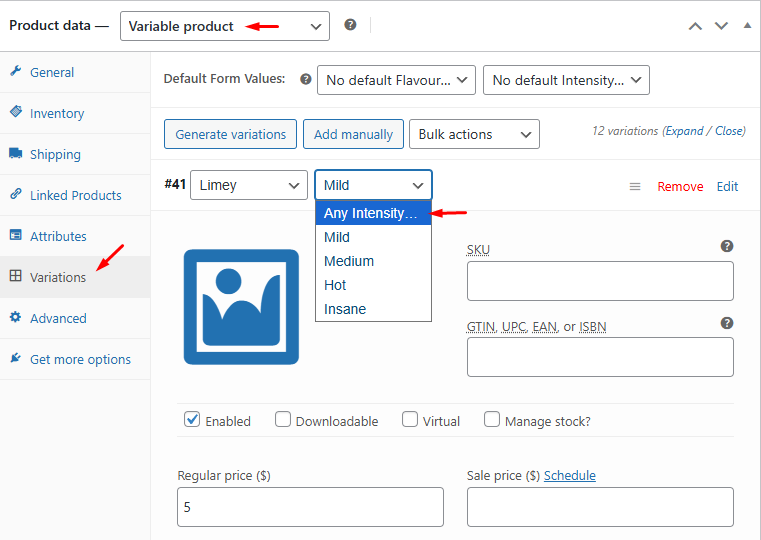
Mix and Match only accepts variations where every attribute has a specific value. If a variation uses “any” for one of its attributes, say, a hot sauce variation with Flavour = Limey but Intensity = Any, it won’t qualify. The plugin checks each attribute on the variation and excludes the whole thing if any attribute is left open.
Why this matters: The “any” pattern is a common WooCommerce shortcut to avoid creating a separate variation for every intensity when the price and stock are the same. It works fine on a standard product page. But in a Mix and Match container, “any intensity” doesn’t give the plugin a concrete product to put in the customer’s cart, so it’s skipped.
If a variation you expected to see isn’t showing up in the Select products picker, check the attribute values on the variation itself. Every attribute field needs a real value selected, not “Any [attribute]”.
Select product categories mode: variations are excluded
The second option for Allowed content, Select product categories, behaves differently. When a container is configured this way, only Simple products from the chosen categories come through as children.
This isn’t a bug or an oversight you can work around, it’s a structural limit of how the category query runs. Category-based queries in WooCommerce operate on parent products, and the query Mix and Match uses for this mode doesn’t surface individual variations. If your variable products are categorized into “Hot Sauces,” picking that category for a container gives you the simple products in Hot Sauces. The variable parents and their variations won’t be part of the pool.
If your catalog is variation-heavy and you want category-based containers, this is the tradeoff to know about up front. Select individual products is the mode that works with variations; Select product categories is simple-only.
What isn’t supported
For completeness, here’s the full picture of what can and can’t be a child in a Mix and Match container:
- Simple — supported in both Allowed content modes
- Variation (fully defined) — supported in Select individual products mode only
- Variation (with any “any” attribute) — not supported
- Variable (the parent) — not supported; use the individual variations
- Grouped — not supported
- External / Affiliate — not supported
- Subscription — supported via the All Products for WooCommerce Subscriptions integration, not core MNM
If a container needs to include any of the unsupported types as a unit (rather than by breaking them down), that’s generally a sign the store setup needs to be approached differently, or that a different bundling tool fits the use case better.
Quick reference
| What you’re adding | Select individual products | Select product categories |
|---|---|---|
| Simple product | ✓ Works | ✓ Works |
| Variation (all attributes set) | ✓ Works | ✗ Excluded |
| Variation (with “any” attribute) | ✗ Skipped | ✗ Excluded |
| Variable parent | ✗ Not listed | ✗ Not listed |
| Grouped / External | ✗ Not supported | ✗ Not supported |
What’s Next?
- If your products aren’t showing up at all and you’ve ruled out the variation rules above, the full rundown is in Troubleshooting: Why Won’t My Products Show in Mix and Match Containers?
- New to Mix and Match? Start with How to Set Up Your First Mix and Match Product in 10 Minutes
- For the full configuration picture, the official Mix and Match Products documentation covers every field in the admin
Variable products in Mix and Match aren’t complicated once the shape of it clicks: pick the variations you want, make sure their attributes are fully defined, and set Allowed content to Select individual products. That covers almost every real-world scenario.