Using Categories vs. Individual Products in Mix and Match
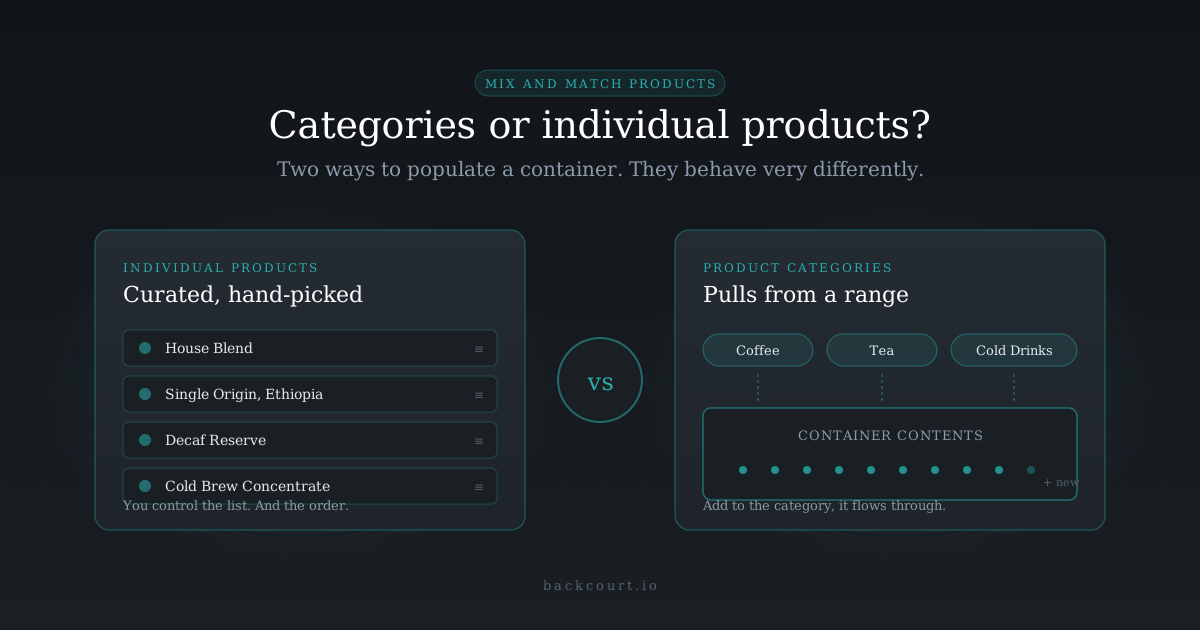
When you build a Mix and Match container, one of the first real decisions is how to tell the plugin which products are allowed inside it. You have two options: point at the products one by one, or point at a category and let the plugin pull from it. Both are valid. They behave very differently once your catalog starts to move.
This article walks through what each mode does under the hood, where each one shines, and how to pick between them without boxing yourself in.
The two Allowed content modes
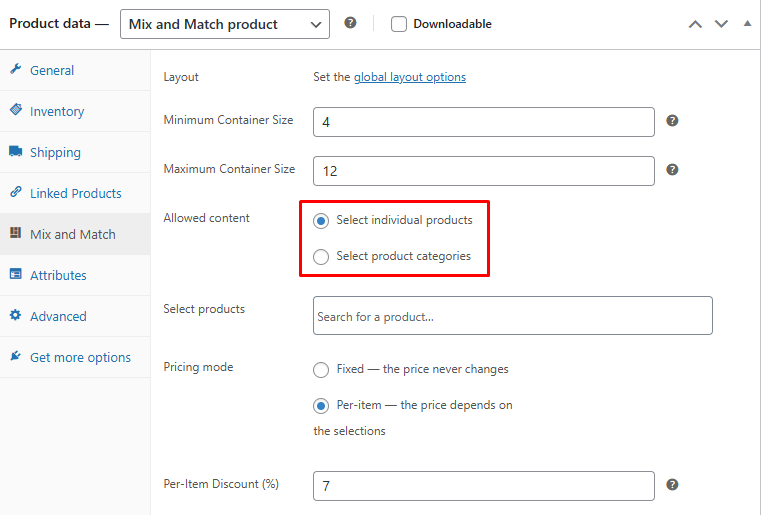
In the product data panel, under the Mix and Match tab, the Allowed content field is a simple radio toggle with two options:
- Select individual products
- Select product categories
Whichever one you pick, a matching picker appears below it: Select products if you chose the first, Select categories if you chose the second. The picker determines what your customers can put in the container.
How Select individual products works
This is the default, and it’s the mode most people reach for first. You search for products by name, pick them one at a time, and they appear in the picker as a sortable list. What you add is what your customers see in the container, in the order you arranged them.
A few details worth knowing:
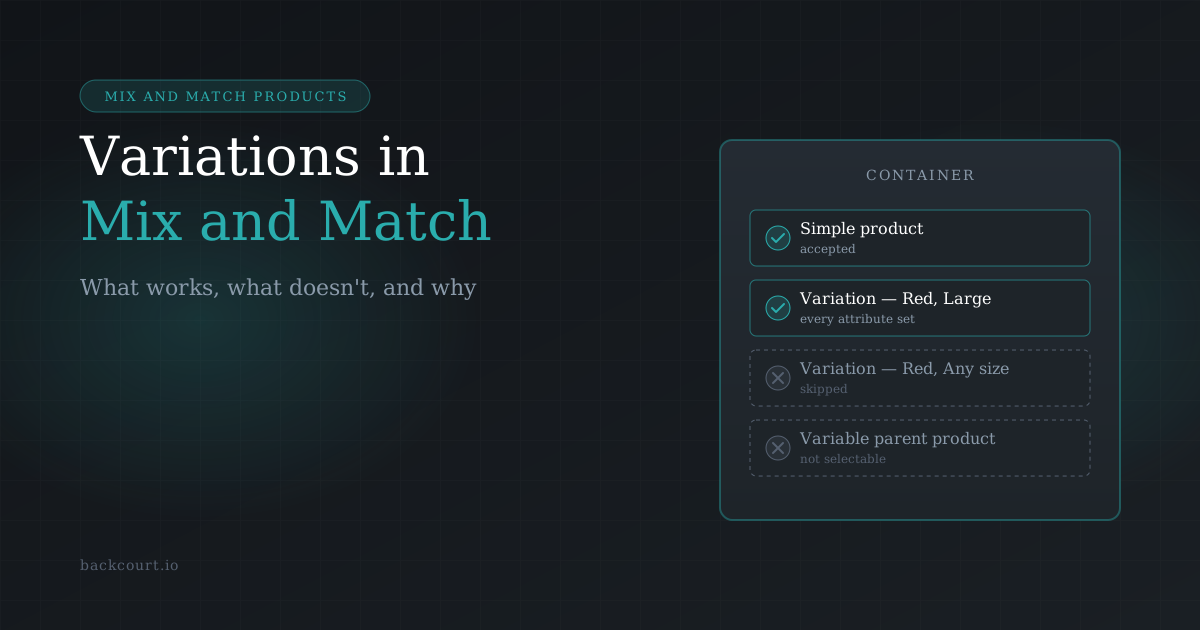
- Variations show up individually. The search surfaces both simple products and individual variations from your variable products. Rather than selecting the variable parent, you select the specific variation (for example, the Medium, Red T-shirt, not the T-shirt product). This is the only way to put variations into a Mix and Match container. For a deeper look at how variations behave in MNM, see Variable Products in Mix and Match: What Works and What Doesn’t.
- Ordering is preserved. The list is drag-sortable, so if you want Featured Blend to sit at the top of the container and Decaf at the bottom, you control that.
- New products don’t appear automatically. If you launch a new product next month, it stays out of the container until you edit the container and add it. Nothing changes unless you change it.
Tip: If a product you know exists isn’t showing up in the search, the cause is almost always on the product itself: its type, status, or visibility. The troubleshooting guide for products not appearing covers the full checklist.
How Select product categories works
Instead of picking products, you pick one or more product categories. The plugin then queries every eligible product in those categories and makes them available inside the container. You never list individual products; the category does it for you.
This mode has its own quirks:
- Only simple products come through. The category query is hard-limited to simple products. Variations are excluded entirely, even if the category contains variable products. This is a structural limitation of how the query is built, not a filterable setting. If your category is full of variable T-shirts, the container based on that category will show nothing.
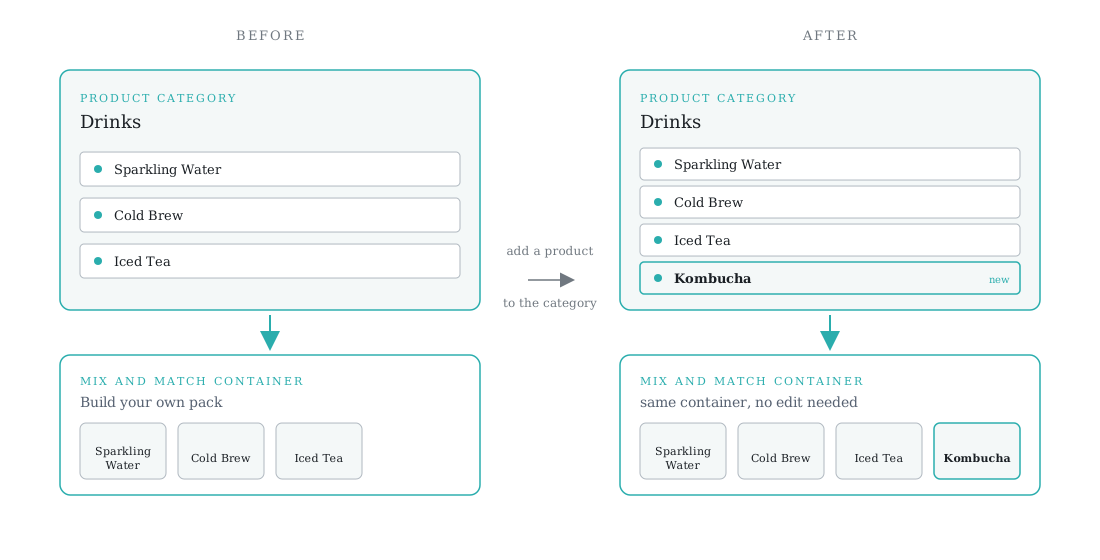
- The container updates automatically as the category changes. Add a new simple product to the category, and it becomes available in existing containers. Remove a product from the category, and it drops out. There’s no re-saving the container; the plugin watches for category changes and refreshes its cached list.
- Ordering is by product title. Categories are sorted alphabetically; you don’t get drag-ordering the way you do with individual selection. If precise ordering matters, this mode will fight you.
When to reach for Select individual products
Pick this mode when:
- You want a curated selection. A build-your-own-six-pack of your top six bestsellers is a curation, not a category rule. You want exactly those products, in a specific order, and nothing else.
- Variations need to be in the container. This is the only mode that supports variations. If your container is a custom-print mug bundle and the mug comes in three colours, you need individual selection to include those variation-level products.
- Your catalogue is small or stable. When you’re not adding new products often, the cost of manually updating the container is low, and the control you get in exchange is worth it.
- Ordering matters. If you want to nudge customers toward certain items by listing them first, only individual selection lets you arrange the list deliberately.
- You’re mixing product types. A container can include both simple products and specific variations at the same time, but only through this mode.
When to reach for Select product categories
Pick this mode when:
- Your catalogue is large or rotates often. A thirty-product seasonal menu that changes weekly is painful to maintain by hand. A category wired into the container does the maintenance for you.
- The container is meant to mirror a range, not curate one. “All beers from the North Coast brewery” or “everything in our vegan range” is a category rule by definition. The category is the source of truth.
- Inventory comes and goes. If you regularly add new SKUs to a line, category mode means you never forget to add them to the relevant containers.
- Your catalogue is simple-products-only, or at least the range you care about is. Category mode can’t reach variations, so it works cleanly when the products in scope are all simple.
Decision framework
| If… | Use |
|---|---|
| You need variations in the container | Select individual products (only option that supports variations) |
| Your catalogue changes weekly and you don’t want to maintain the container by hand | Select product categories |
| You want a specific order for the products shown | Select individual products |
| You want the container to mirror a whole product line | Select product categories |
| You’re mixing simple products and variations in one container | Select individual products |
| Your range is all simple products and it’s large | Select product categories |
There’s no rule that a store has to commit to one mode across every container. A “build-your-own six pack” container can use individual selection for a curated six of your flagship beers, while a “seasonal sampler” container uses category selection to pull from the current season’s category. Each container decides independently.
How to configure each mode
The setup itself is simple. The real work is in the decision above. Once you’ve chosen:
- Open the Mix and Match container in the WordPress admin and go to the Mix and Match tab in the product data panel.
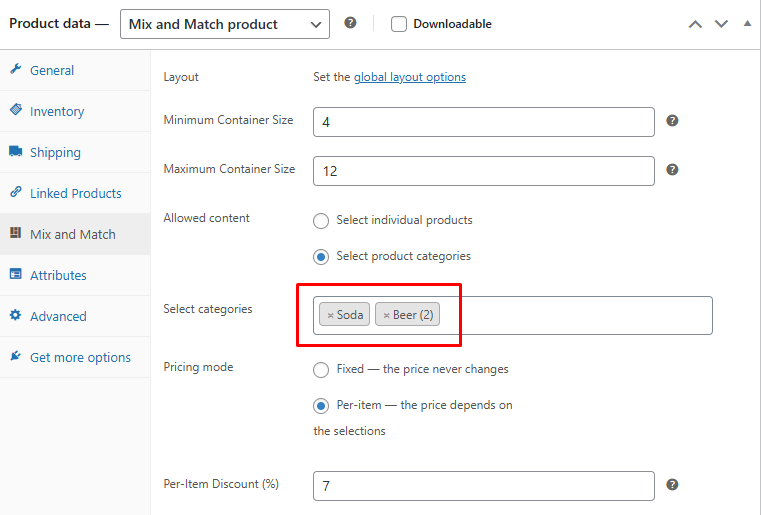
- Set Allowed content to your chosen option.
- In the sub-picker that appears (Select products or Select categories), search for and add the products or categories you want.
- Save the product.
If you later need to switch a container from one mode to the other, you can. Switching doesn’t destroy your previous selection; it’s just no longer in use. If you switch from individual products to categories, your hand-picked list sits dormant and the category query takes over. Switching back restores the original list.
Note: If you set a container to use categories and then can’t see any products in the picker on the front end, the most common cause is that the chosen categories contain only variable products. Category mode only returns simple products, so a category of variable T-shirts will look empty to the container.
What’s Next?
- Building your first container from scratch? Start with How to Set Up Your First Mix and Match Product in 10 Minutes.
- If your container uses variable products, read Variable Products in Mix and Match: What Works and What Doesn’t, which covers which variations qualify and why some are silently skipped.
- Products not showing up in the picker at all? Troubleshooting: Why Won’t My Products Show in Mix and Match Containers? walks through the full list of reasons a product can be excluded.
- Once your container is populated, the next decision is how to price it. Fixed Price vs. Per-Item Pricing: Which Should You Choose? lays out the two pricing modes.
Still weighing which mode fits your store? The Mix and Match Products documentation is the full reference, and our support desk is happy to think through the tradeoffs with you.