How to Prevent Products from Being Sold Outside Mix and Match Bundles
TL;DR: To sell a WooCommerce product only inside a Mix and Match bundle, edit the product and tick Not sold separately on the Inventory tab. The setting is built into Mix and Match Products 2.9.0 and newer, so there is nothing extra to install. The product’s Add to cart button disappears on its own page, replaced by the message “This product can only be purchased as part of a mix and match bundle.” and links to the bundles that include it, but the product stays fully selectable inside any Mix and Match container.
Say you sell a build-your-own soda pack. You want customers to choose four to twelve flavors and check out as one pack, but you don’t want anyone buying a single can of Apple Soda on its own. Mix and Match handles the pack itself. On its own, though, nothing stops a shopper from landing on the Apple Soda product page and adding one to the cart for $3.
Since version 2.9.0, Mix and Match Products ships with a setting for exactly this. Tick one checkbox on the product and it stays available inside your containers while disappearing as a standalone purchase, so your catalog only ever sells the bundle you intended.
What you’ll need
- WooCommerce with Mix and Match Products 2.9.0 or newer installed and active
- At least one product that already belongs to a Mix and Match container
Upgrading from the Not Sold Separately mini-extension? Before 2.9.0 this feature lived in a free companion plugin, Not Sold Separately for WooCommerce. Mix and Match 2.9.0 absorbs it. See Already using the mini-extension? below for the two-minute switch; the products you have already restricted carry over.
Step 1: Mark a product as not sold separately (~1 minute)
- Go to Products and open the product you want to restrict.
- In the Product data box, select the Inventory tab.
- Tick Not sold separately. The description reads, “This product can only be purchased as part of a mix and match bundle.”
- Select Update.
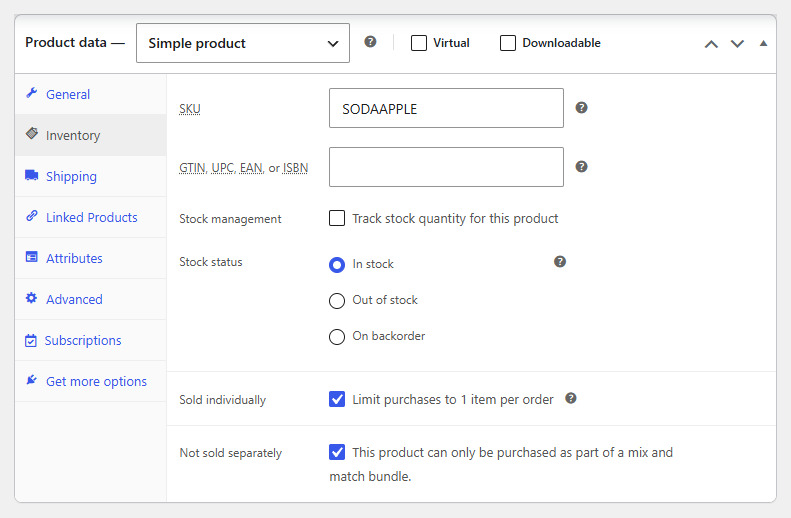
For a variable product, you set this per variation. Each variation row in the Variations panel has its own Not sold separately checkbox, so you can restrict one variation while leaving the others on sale.
Step 2: Confirm it on the storefront (~2 minutes)
Open the product’s page on your store as a customer would see it (log out, or use a private window). Two things change.
First, the Add to cart button is gone. In its place, the product shows a line of text and links to the bundles it belongs to:
This product can only be purchased as part of a mix and match bundle.
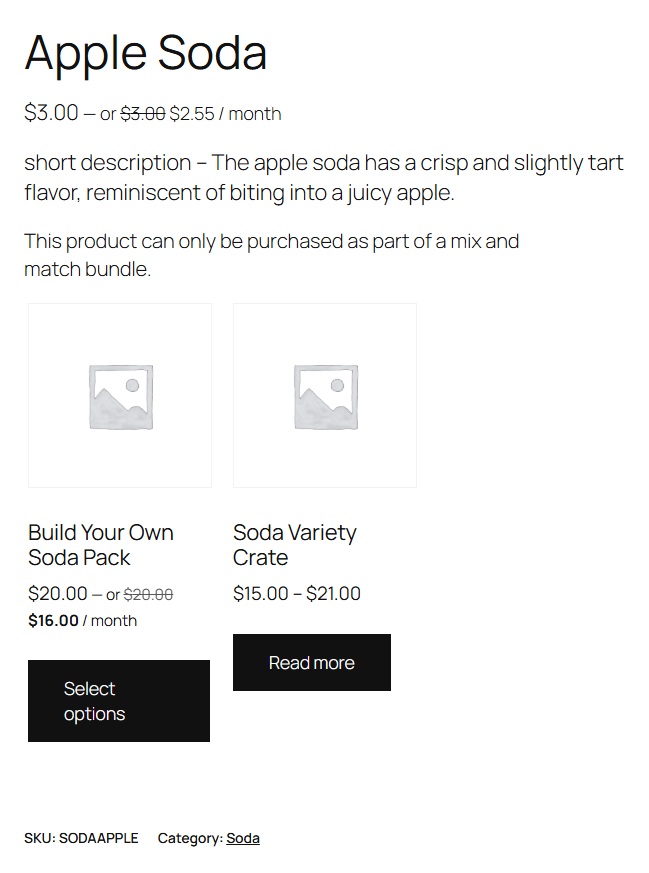
Mix and Match lists up to three containers that include the product, so customers always have a clear path to buy it as part of a bundle.
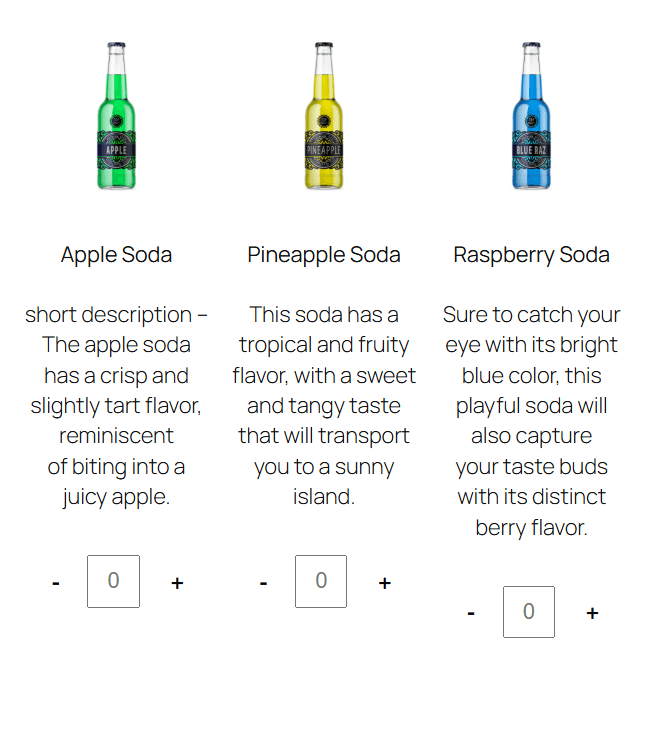
Second, the product still works exactly as before inside your Mix and Match containers. Open one of the bundles it belongs to, and the product is right there in the picker, ready to add to the pack:
If a restricted product somehow ends up in a cart on its own (for example, from an old session or a saved link), Mix and Match removes it when the cart loads and shows a notice: “Apple Soda has been removed from your cart because it cannot be purchased separately.” Your customers can’t check out with a standalone item you’ve restricted.
Already using the mini-extension?
If you installed Not Sold Separately for WooCommerce before 2.9.0, the switch takes two minutes and keeps your existing settings:
- Update Mix and Match Products to 2.9.0 or newer.
- Run the database update. WooCommerce shows a Mix and Match Products for WooCommerce database update required alert on WooCommerce → Home; select Update Database. The update runs in the background and moves each product’s Not sold separately flag onto the new built-in setting.
- Go to Plugins and deactivate, then delete, Not Sold Separately for WooCommerce. Mix and Match reminds you with the notice “The Not Sold Separately mini-extension is now part of WooCommerce Mix and Match. Please deactivate and remove the Not Sold Separately plugin.” until you do.
Open one of your restricted products afterwards and the Not sold separately box on the Inventory tab is already ticked. No products need re-editing.
How it works
When you tick Not sold separately, Mix and Match marks the product as not purchasable on its own (is_purchasable becomes false), which is what removes the Add to cart button. It then makes one exception: when the same product is offered inside a Mix and Match container, it’s treated as part of that container and stays fully available. For variable products, the restricted variation is hidden from the variations dropdown rather than shown without a buy button.
The product itself stays published. It still appears in your shop catalog and search results, because the goal is to control how it’s sold, not to hide it.
Frequently asked questions
Does this work with variable products?
Yes. Variable products get a Not sold separately checkbox on each variation, in the Variations panel. A restricted variation is hidden from the variations dropdown on the product page, while any variations you leave unrestricted stay on sale as normal.
Will the product still work inside my Mix and Match bundles?
Yes. Restricting a product only blocks standalone purchases. Inside any Mix and Match container that includes it, the product appears in the picker and can be added to the container exactly as before.
Do I still need the Not Sold Separately mini-extension?
No. Mix and Match Products 2.9.0 includes the feature. Update Mix and Match, run the database update from WooCommerce → Home, then deactivate and delete the mini-extension. Products you restricted with the mini-extension stay restricted.
Does it hide the product from my shop pages?
No. The product stays published and still shows in your catalog and search. Mix and Match removes the Add to cart button on its own page and replaces it with links to the bundles that include it. Only individual variations of a variable product are hidden from view.
How is this different from the “Sold individually” setting?
Sold individually limits a product to one unit per order but still sells it on its own. Not sold separately removes standalone purchasing entirely, so the product is only ever bought as part of a bundle. The two settings sit next to each other on the Inventory tab.
Does it work with WooCommerce Product Bundles or Composite Products?
No. The setting is part of Mix and Match Products and only recognises Mix and Match containers as the “bundle” a restricted product can be sold in. If you also run Product Bundles or Composite Products, test a restricted product inside those on a staging site before relying on it.
What’s next?
- Using Categories vs. Individual Products in Mix and Match: decide how to populate your containers
- How to Set Up Your First Mix and Match Product: the full container walkthrough
- Variable Products in Mix and Match: What Works and What Doesn’t: if your restricted products use variations
That single checkbox changes how your store reads to customers: you sell the bundle, not the loose parts that make it up. If you haven’t built your containers yet, start with Mix and Match Products, then tick the box on each product once your containers are in place.