How to Accept Recurring Donations in WooCommerce with Name Your Price
TL;DR: WooCommerce can accept recurring donations with donor-chosen amounts using Name Your Price and WooCommerce Subscriptions together. NYP has built-in Subscriptions compatibility — no bridge plugin required. Donors set their own price, that amount becomes the recurring charge, and subscribers can change it later if you enable price switching.
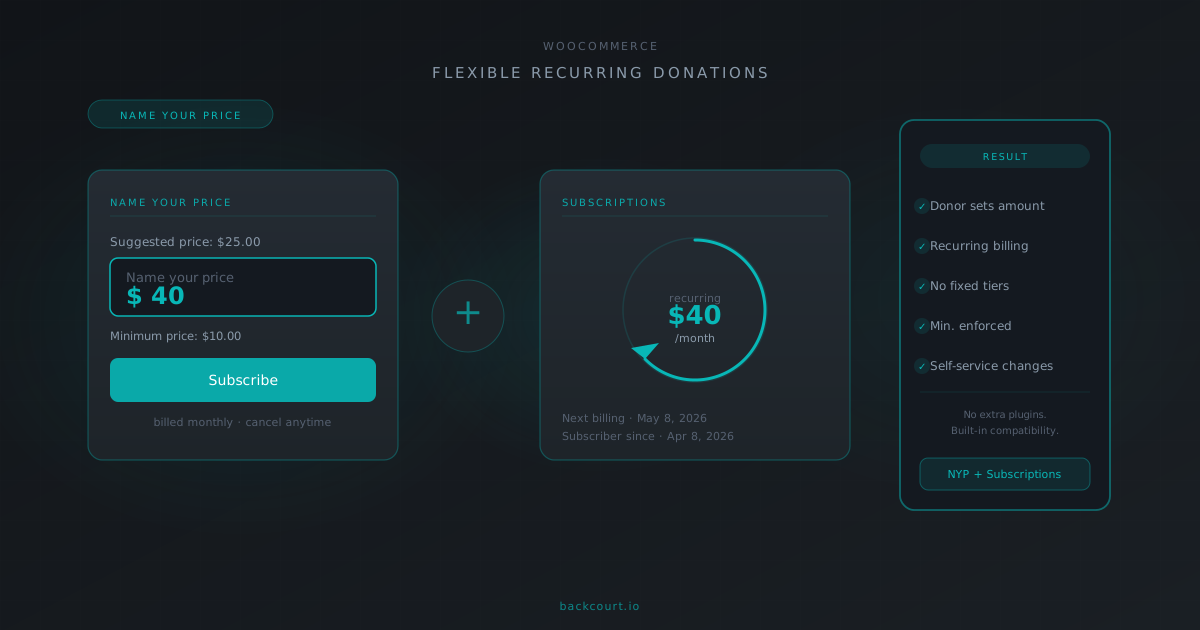
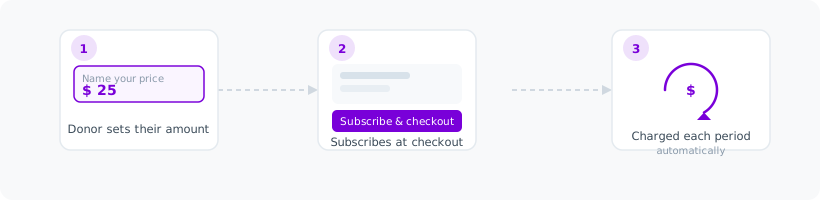
If you’re running one-time donations with Name Your Price and considering moving to recurring, you can do it without adding another plugin. Name Your Price has built-in compatibility with WooCommerce Subscriptions. Donors set their own amount, and that’s what recurs each cycle.
Why flexible amounts matter for recurring donations
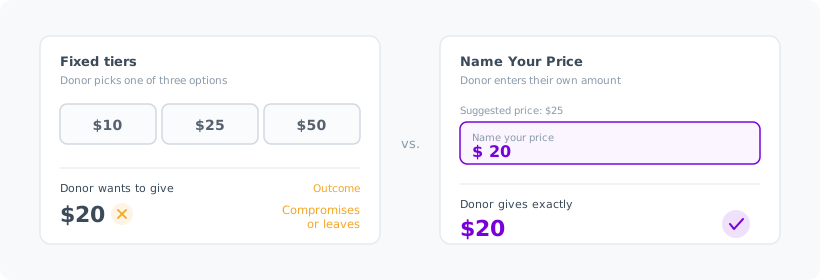
Fixed donation tiers work well when you’ve thought carefully about your audience. Offer $10, $25, and $50 per month, and you’ll convert many donors cleanly. But some donors don’t fit neatly into those brackets. Someone who wants to give $20 or $75 either picks the nearest tier or leaves without donating.
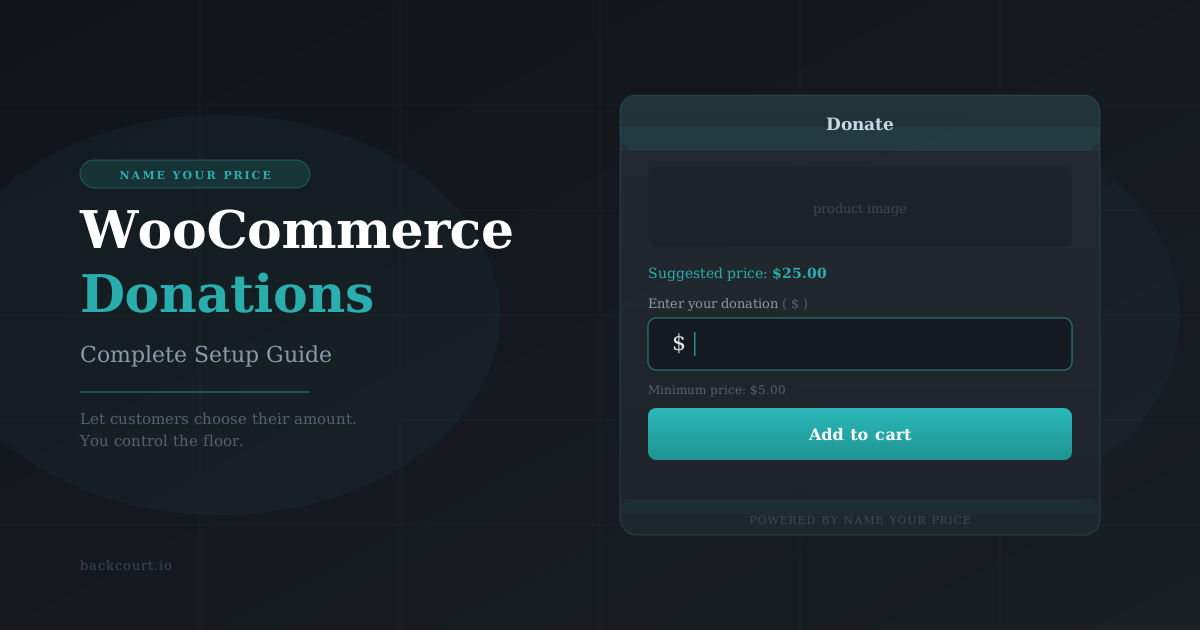
Name Your Price replaces the tier selector with an open price input. Donors type whatever they want to give, and that becomes the recurring amount.
What the integration enables
When both plugins are active, Name Your Price works on WooCommerce’s Simple Subscription product type. From the donor’s side, it looks like any other Name Your Price product: they see the price input and add to cart. Their amount then recurs on whatever schedule you set.
All the standard Name Your Price price fields carry over to subscription products:
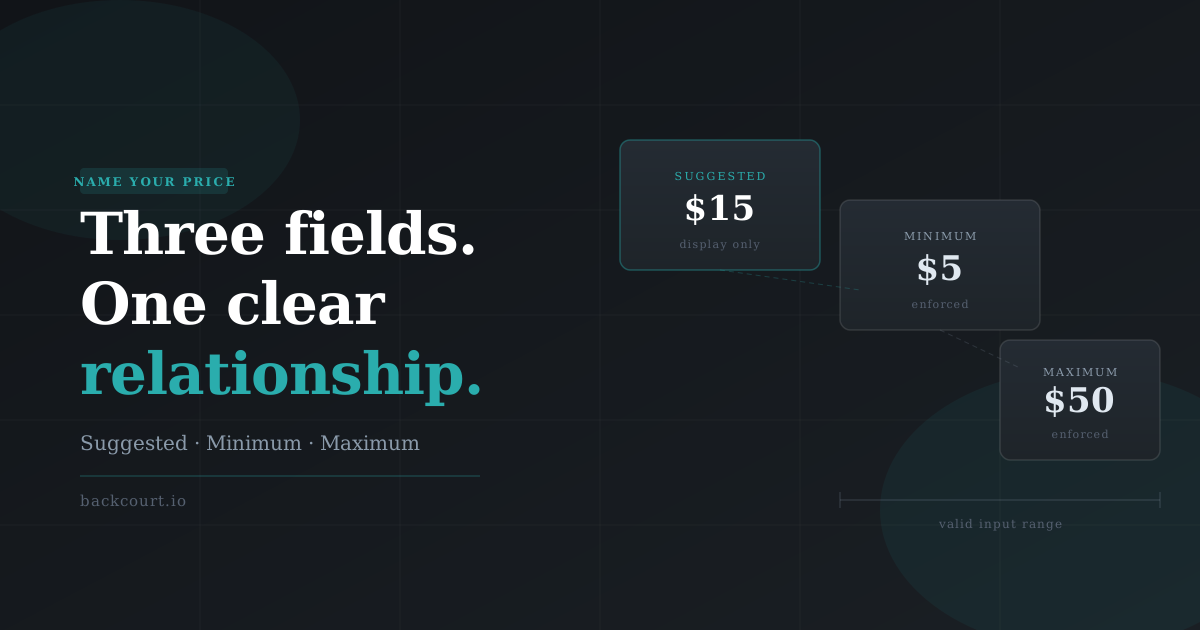
- Suggested Price appears above the input as a reference. It doesn’t pre-fill anything, but most donors will anchor around whatever you set here.
- Minimum Price is the floor. Anything below gets rejected at add-to-cart.
- Maximum Price is optional. Use it if you want to cap large pledges (rare for donations).
- Hide Minimum Price suppresses the minimum on the front end without changing the validation. Worth considering for donation forms, where showing a floor can pull donors toward it.
Before you start
You’ll need:
- Name Your Price, installed and active
- WooCommerce Subscriptions, installed and active
- A payment gateway that supports subscription billing (Stripe and PayPal are the most common choices)
No bridge plugin is needed. The compatibility is part of Name Your Price.
Step 1: Create the product and enable Name Your Price (~3 minutes)
Go to Products → Add New and give the product a clear title. “Monthly Donation” or “Support Us” both work depending on how you want to present it.
In the Product data panel, set the product type to Simple subscription. This option appears in the dropdown once WooCommerce Subscriptions is active.
The Name Your Price checkbox sits in the product type options row, directly above the data tabs (alongside Virtual and Downloadable). Check it. The price fields you’ll configure in the next step appear in the General tab once this is enabled.

Step 2: Configure your price fields (~3 minutes)
With Name Your Price enabled, the General tab now shows the Name Your Price fields:
- Suggested Price: the amount displayed as a reference above the input. Set this to what a typical contribution looks like for your organization.
- Minimum Price: the lowest amount you’ll accept. Set it high enough to cover payment processing costs at minimum.
Leave Maximum Price blank unless you want to cap pledges. Hide Minimum Price is also optional. See Setting Up Name Your Price: Minimum, Maximum, and Suggested Prices Explained for guidance on when each is useful.

Step 3: Set the billing schedule (~2 minutes)
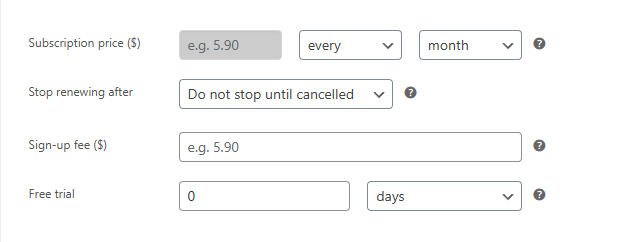
Stay in the General tab and scroll down past the Name Your Price fields to the Subscription pricing section. Set the billing period and interval — for a standard monthly giving program, leave it at every 1 month.
You’ll notice the Subscription price field is greyed out and uneditable. That’s intentional — the plugin disables it when Name Your Price is enabled, since donors set the actual recurring amount themselves through the price input. (On save, the plugin also writes your minimum price into this field internally so other parts of WooCommerce that read a “regular” subscription price still get a sensible value.)
.
Step 4: Publish and test (~5 minutes)
Publish the product, then run through checkout as a donor:
- Add the product to your cart with an amount above your minimum and complete checkout. Confirm the order and subscription are both created in your WooCommerce admin.
- Try again with an amount below your minimum and confirm it’s blocked. The plugin shows an inline notice (“Please enter at least $X”) and prevents the form from submitting.
If your payment gateway supports test renewals, verify that one processes correctly before sending donors to the live page.

What donors see in the cart
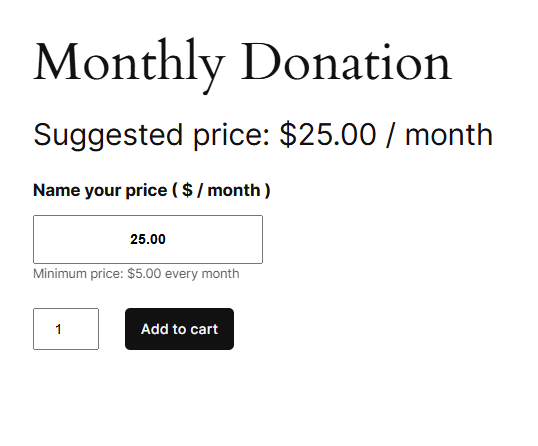
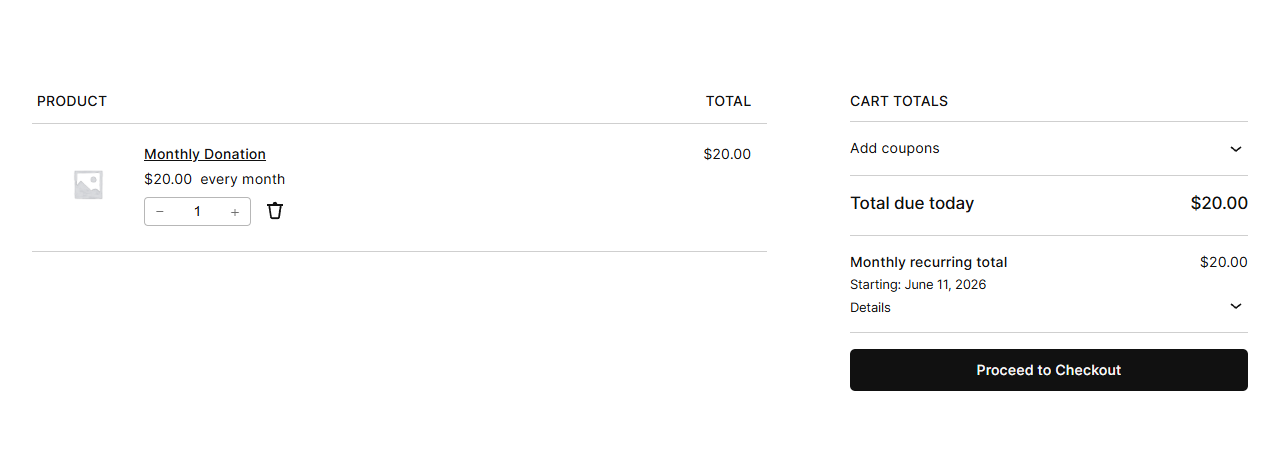
Once the product is in the cart, the recurring nature surfaces in two places. The line item shows the amount with the period inline (“Monthly Donation $20.00 every month”), and the cart totals split into Total due today and Monthly recurring total, with a “Starting:” date for the next charge.
This breakdown is built into WooCommerce Subscriptions, so you don’t configure it. Worth knowing because it means donors see exactly what they’re committing to before they pay.
Beyond the basics
Two more features come with the integration. Both deserve a full write-up; here’s the short version.
Variable Billing Period
Name Your Price adds a Variable Billing Period checkbox to subscription products. When enabled, donors can choose both their amount and their billing frequency, whether weekly, monthly, or yearly. You can configure a suggested billing period as a starting point and a minimum period if needed.
For recurring donations, this gives donors more control over how they give. Some prefer a larger annual contribution over smaller monthly charges. We’ll cover the full setup in a separate guide. [link to be added on publish]
Subscriber price switching
WooCommerce Subscriptions includes a switching feature that Name Your Price extends to cover price changes. Once you turn on the relevant option in your Subscriptions settings, subscribers can change their donation amount from My Account without canceling and re-subscribing. For long-term donors, that’s the difference between adjusting and churning.
We’ll cover the configuration and subscriber experience in a dedicated article here.
Frequently Asked Questions
Can I accept recurring donations with WooCommerce?
Yes. WooCommerce Subscriptions enables recurring billing for any subscription product. To let donors choose their own recurring amount instead of picking from fixed tiers, pair WooCommerce Subscriptions with Name Your Price.
Does Name Your Price work with WooCommerce Subscriptions?
Yes — Name Your Price has built-in compatibility with WooCommerce Subscriptions. No bridge plugin is needed. Enable the Name Your Price checkbox on a Simple Subscription product, and donors set the recurring amount through the price input.
Do I need a separate plugin for donor-chosen recurring amounts?
No. Name Your Price plus WooCommerce Subscriptions covers it directly. Without these two, you’d typically need a dedicated donations plugin or build custom logic to accept arbitrary recurring amounts.
What’s the minimum donation amount?
You set it. The Minimum Price field on the product enforces the floor — anything below gets blocked at add-to-cart with an inline error. Set it high enough to cover your payment processor’s per-transaction fees.
Can subscribers change their donation amount later?
Yes, with one setup step. Enable Change Name Your Price subscription amount in WooCommerce → Settings → Subscriptions. Subscribers then see a “Change price” button on My Account and can adjust without canceling and re-subscribing.
Does this work with Stripe and PayPal?
Yes. Both Stripe and PayPal support subscription billing through their official WooCommerce integrations. Any payment gateway that supports WooCommerce Subscriptions tokenized recurring billing works — the integration is at the Subscriptions layer, not the Name Your Price layer.
How is this different from fixed donation tiers?
Fixed tiers (preset $10 / $25 / $50 buttons) work well when you’ve calibrated to your audience, but donors who want to give $20 or $77 either pick the nearest tier or leave. Name Your Price replaces the tier selector with an open price input — donors give exactly the amount they intended.
What’s Next?
- Name Your Price for Donations: Complete Setup Guide: the foundation, if you’re starting with one-time donations
- Setting Up Name Your Price: Minimum, Maximum, and Suggested Prices Explained. Walks through how the three price fields interact and which combinations to reach for.
Name Your Price is available at woocommerce.com. If you run into questions during setup, our support team is one ticket away.