Troubleshooting: Why Won’t My Products Show in Mix and Match Containers?
You’ve set up a Mix and Match container, added your products, and opened the front end, only to find some products are missing from the selection, or they’re there but greyed out with a “Temporarily unavailable” message. This is one of the most common configuration questions we see, and the answer is almost always one of a small number of product-level settings.
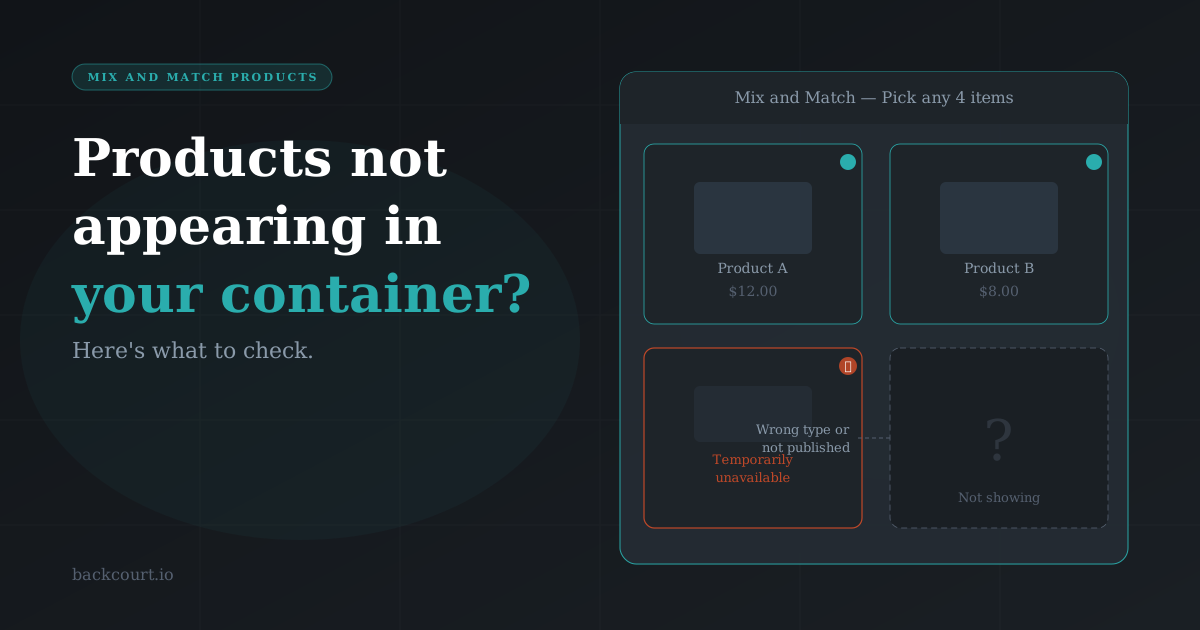
There are actually two separate problems here, and they have different causes. Products that don’t appear at all are being filtered out before they ever reach the page. Products that appear but are unavailable are making it through; they just fail a purchasability check at the point of display. This article walks through both.
Products that aren’t showing up at all
The product type isn’t supported
Mix and Match only supports Simple products and individual Variations (from a Variable product) as child items. Variable products themselves (the parent product with the dropdown) are not supported. Neither are Grouped or External products.
If you’ve added a Variable product to your container, or assigned a category that contains Variable products, those products won’t appear. To make a variation selectable in a container, you need to add the specific variation, not the parent product.
Note: If your container uses Select categories to pull in content, only Simple products from those categories will appear. Variations aren’t returned by that query. To include variations in a container, you’ll need to add them individually using Select products instead.
The product isn’t published
Mix and Match checks each child product’s publish status before displaying it. If a product is set to Draft, Pending Review, or Private, it won’t show in the container on the front end.
To check: go to Products → All Products, find the product in question, and confirm the status column shows Published. If it’s in draft, publishing it will make it appear immediately (subject to the other checks below).

Note that if you’re logged in as an admin and previewing the page, you may still see unpublished products. This is by design. Customers won’t see them.
For a full overview of product status and visibility options, see the WooCommerce product editor settings documentation.
WooCommerce is hiding out-of-stock products
WooCommerce has a global setting that hides out-of-stock products from your catalog. Mix and Match respects this setting for child items too. If a product is marked out of stock and this option is turned on, it won’t appear in the container, even if you’ve explicitly added it.
To check the setting: go to WooCommerce → Settings → Products → Inventory and look for Hide out of stock items from the catalog. If that’s checked and your product is out of stock, either restock the product or uncheck the setting if you want out-of-stock items to remain selectable (they’ll show as unavailable to customers).

For more detail on WooCommerce inventory settings, see the WooCommerce Products Settings documentation.
Products that are showing but marked “Temporarily unavailable”
If a product is appearing in the container but showing Temporarily unavailable with the quantity input disabled, the cause is almost always a missing price.
WooCommerce requires a product to have a price set in order to be purchasable. If the Regular price field in the product’s General tab is blank, WooCommerce treats the product as non-purchasable, so Mix and Match displays it with the “Temporarily unavailable” label rather than filtering it out entirely.

To fix it: open the product, go to Product data → General, and set a Regular price. Save the product. If your container uses fixed pricing and you don’t want this product’s price to affect anything, you can set the Regular price to any amount; it won’t be charged in fixed mode. What matters is that the field isn’t empty.
Quick reference: what to check
| Symptom | Likely cause | Where to fix |
|---|---|---|
| Product doesn’t appear at all | Wrong product type (Variable, Grouped, External) | Use a Simple product or add individual Variations |
| Product doesn’t appear at all | Product isn’t Published | Products → All Products → set status to Published |
| Product doesn’t appear at all | Out of stock + catalog hiding enabled | Restock the product, or uncheck Hide out of stock items in WooCommerce inventory settings |
| Product appears but shows “Temporarily unavailable” | No Regular price set | Product data → General → set a Regular price |
| Category-based container missing variations | Category mode doesn’t support variations | Switch to Select products and add variations individually |
What’s next?
- Set up your first Mix and Match container: How to Set Up Your First Mix and Match Product in 10 Minutes
- Fixed vs. Per-item pricing: how child product prices behave at checkout: Fixed Price vs. Per-Item Pricing: Which Should You Choose?
- Mix and Match documentation: full reference at woocommerce.com/document/woocommerce-mix-and-match-products/
- Still stuck? Open a support ticket through the Backcourt vendor page on WooCommerce.com