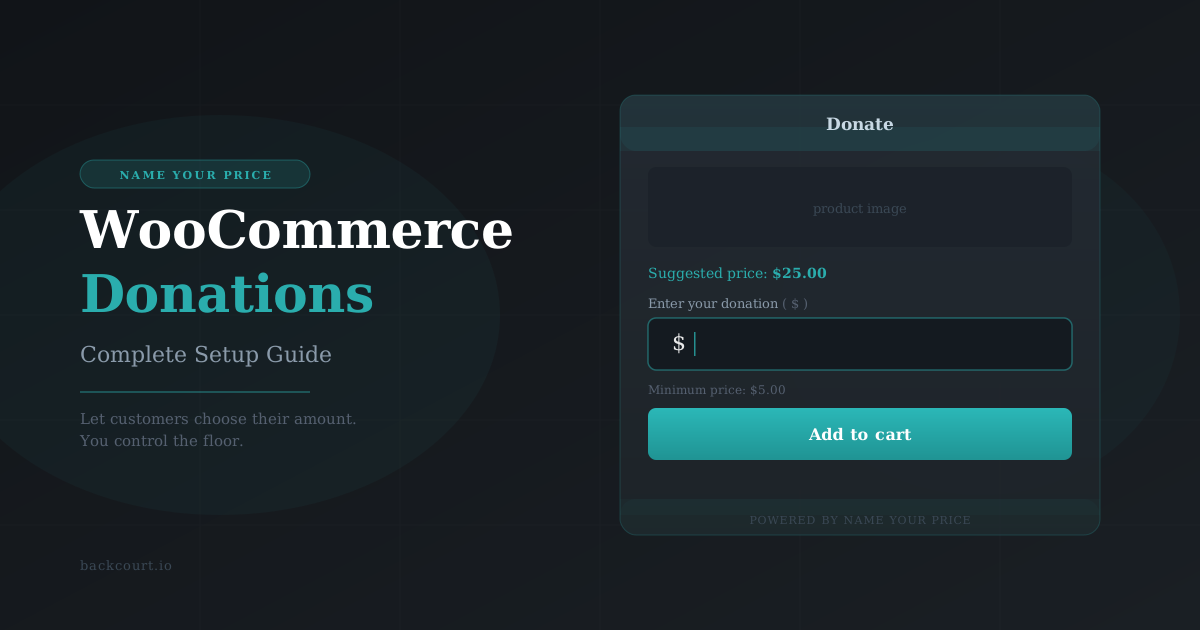
Name Your Price for Donations: Complete Setup Guide
If you’re running a nonprofit, a community project, or any store where supporters pay what they can, you’ve probably wondered how to accept donations without bolting on a separate platform. Name Your Price handles this cleanly inside WooCommerce — customers type in an amount, you control the minimum, and the whole thing runs through your existing checkout.
This guide walks you through the full setup, from creating the product to customizing the text donors see.
Before You Start
You’ll need:
- WooCommerce installed and configured, including at least one payment gateway (Stripe and PayPal both work well for donations)
- Name Your Price installed and activated
- A few minutes and a product name in mind
Step 1: Create your donation product (~2 minutes)
Go to Products → Add New in your WordPress admin.
Give the product a name — something like “Donate,” “Support Our Work,” or your organization’s name works well. Keep it clear; this is what donors will see in their cart and order confirmation.
In the Product data panel, look for the product type options displayed above the tabs. You’ll see a row of checkboxes — find the one labeled Name Your Price and check it.

Leave the product type as Simple product. That’s all you need for a standard one-time donation.
Note: Don’t set a Regular Price in the General tab — Name Your Price replaces the price field entirely. If you enter one, it won’t be charged; the customer’s entered amount takes over.
Step 2: Configure your price fields (~3 minutes)
With the Name Your Price checkbox enabled, the General tab will show three new price fields. None of them are required — but understanding what each does will help you set your donation product up the right way.
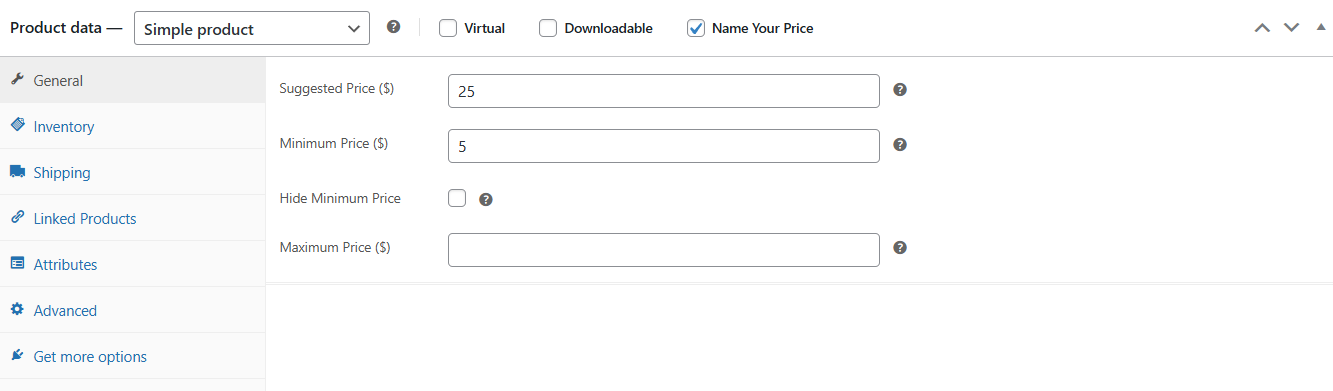
Suggested Price ($)
This is the amount displayed on the product page as “Suggested price: $X.” It doesn’t pre-fill the input — donors still type their own amount — but it anchors their decision. Most people treat a suggested price as a reasonable target, even when it isn’t enforced.
There’s real psychology behind this. Research on charitable giving consistently shows that anchoring donors toward a specific amount increases average gift size. Without a suggestion, many donors default to a low round number. A well-chosen suggested price shifts that default upward.
For most organizations, $25 or $50 works well as a starting point. If your existing donors typically give larger amounts, set the suggestion closer to that average. You can always adjust it later.
Minimum Price ($)
This is the lowest amount you’ll accept. If a donor enters less, they’ll see a validation message before they can proceed to checkout — the cart won’t accept the item until they correct it.
For donation products, a minimum of $1 to $5 is common. It prevents accidental $0 submissions and keeps the transaction economically viable after payment processing fees. Leave it blank only if you genuinely want to accept any amount, including zero.
Tip: You can set a minimum without displaying it to donors. Check the Hide Minimum Price checkbox to enforce the floor silently. This avoids anchoring donors at the bottom when you’d rather they be thinking about the top.
Maximum Price ($)
Optional, and most donation forms leave it blank. You’d only set this if there’s a specific reason to cap gifts — some grant-funded programs have rules about maximum individual contributions, for example.
Step 3: Customize your donation form text (optional, ~3 minutes)
By default, the price input on the product page is labeled “Name your price.” That’s fine for a general product, but for a donation form, something like “Enter your donation” fits better.
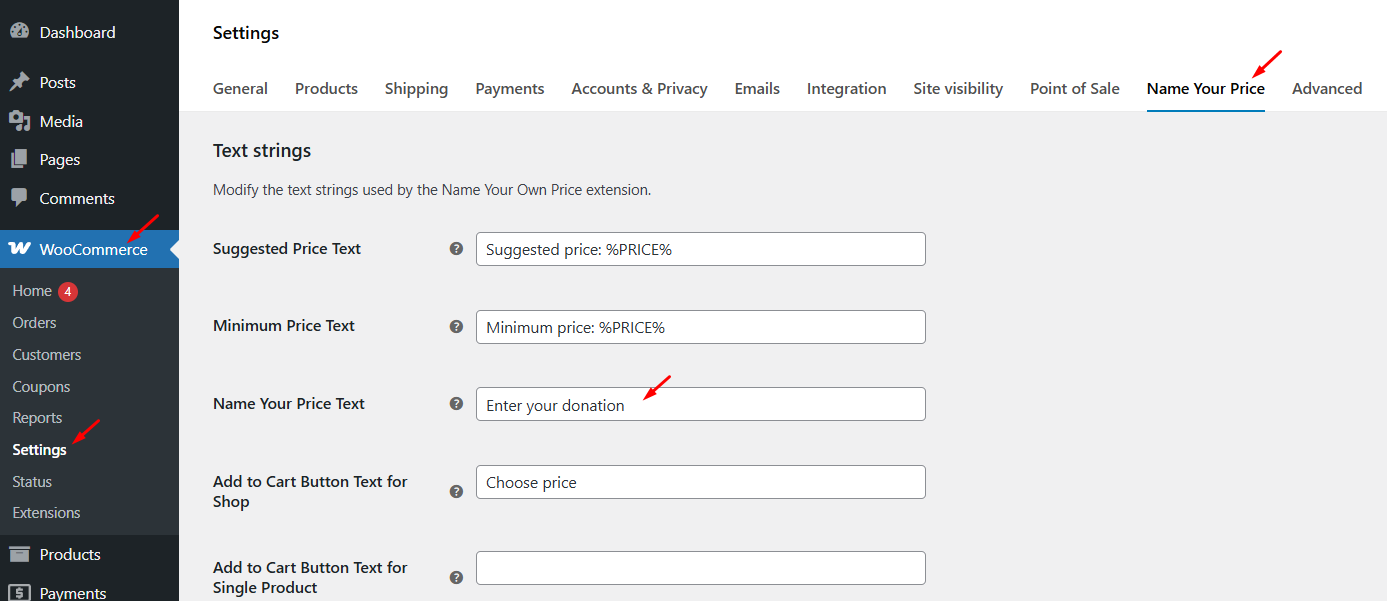
This is a global setting, so it applies to every Name Your Price product on your store. Go to WooCommerce → Settings, find the Name Your Price tab, and look under Name Your Price Setup. You’ll see these fields:
- Name Your Price Text — the label above the price input. Change this to “Enter your donation” or whatever fits your organization’s language.
- Suggested Price Text — the prefix before the suggested price display (default: “Suggested price:”). You might change this to “We suggest:” or leave it as-is.
- Minimum Price Text — the prefix before the minimum price display (default: “Minimum price:”). Only relevant if you’re showing the minimum.
Note: Both the Suggested Price Text and Minimum Price Text fields use a
%PRICE%placeholder, which is replaced with the actual formatted price on the frontend. Keep it in any custom text you write — for example, “We suggest: %PRICE%” or “Minimum gift: %PRICE%”. If you remove it, the price amount won’t appear at all, just the label text.
Step 4: Publish and test (~2 minutes)
Publish the product and visit the product page on the front end.
Check a few things:
- The suggested price string (“Suggested price: $25” or whatever you set) appears above the input
- The input is empty — not pre-filled with the suggested amount
- Entering an amount below your minimum shows a validation message and blocks the add-to-cart
- A valid amount adds the item to the cart with the correct price
Run a test transaction through your payment gateway with a small amount before going live. Most gateways have a sandbox mode for exactly this.
What about recurring donations?
If you want supporters to set up a monthly or annual giving amount, Name Your Price works with WooCommerce Subscriptions. Instead of a Simple product, create a Subscription product type and enable the Name Your Price checkbox. Donors can name their own recurring amount, and the same Suggested Price and Minimum Price fields apply.
One thing to note: subscription donation products use WooCommerce Subscriptions’ standard billing schedule settings — you control the period (monthly, annually, etc.), and the donor controls the amount. If you need donors to choose both the amount and the frequency, Name Your Price also supports a Variable Billing Period option on subscription products. That’s a more advanced setup covered in the Name Your Price documentation.
What’s Next?
- Fine-tune your price fields — for a deeper look at how Suggested Price, Minimum Price, and Maximum Price interact, see Setting Up Name Your Price: Minimum, Maximum, and Suggested Prices Explained
- Read the full documentation — Name Your Price documentation covers variable products, subscriptions, and developer filters
- Get Name Your Price — if you’re not using it yet, find it on the WooCommerce product page
If you run into anything unexpected during setup, our support team is one ticket away.