Creating Your First Free Gift Coupon (Step-by-Step)
Setting up a Free Gift Coupon takes a few minutes and no custom code. When a customer enters the coupon code, WooCommerce automatically adds the gift product to their cart — priced at free — and removes it if they remove the coupon. This guide walks through the full setup from creating the coupon to publishing it.
Before you start
Two things to have in place before you begin:
- Free Gift Coupons installed and active. If you haven’t picked it up yet, you can get it from the Free Gift Coupons product page.
- Your gift product already exists in your store. The product needs to be published, in stock, and have a price set. The price won’t matter to your customers — the plugin zeroes it out at cart time and displays it as “Free!” — but WooCommerce uses these conditions to determine whether a product is purchasable, and unpurchasable products can’t be gifted. If your product doesn’t meet these conditions, the plugin will warn you when you try to save the coupon. If you need to create the product first, see WooCommerce’s guide to adding and managing products.
Step 1: Create a new coupon (~1 minute)
Go to Marketing → Coupons and click Add new coupon at the top of the screen.
Note: In older versions of WooCommerce, Coupons may appear under WooCommerce → Coupons instead of Marketing → Coupons. Both lead to the same place.

Step 2: Set the coupon code (~1 minute)
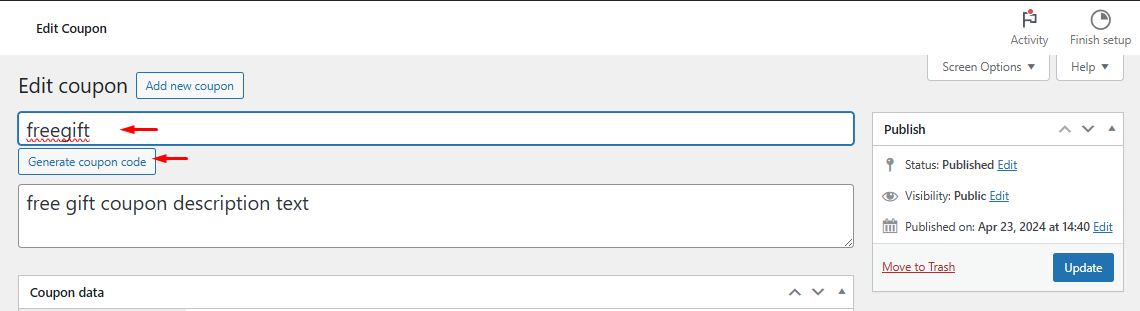
In the Coupon code field at the top, enter the code customers will use at checkout. WooCommerce will generate a random code for you if you click Generate coupon code, or you can type your own.
Coupon codes are case-insensitive — FREEGIFT, freegift, and FreeGift all work the same way.
Step 3: Choose the “Free Gift” discount type (~1 minute)
In the Coupon data panel, make sure you’re on the General tab. Open the Discount type dropdown and select Free Gift.
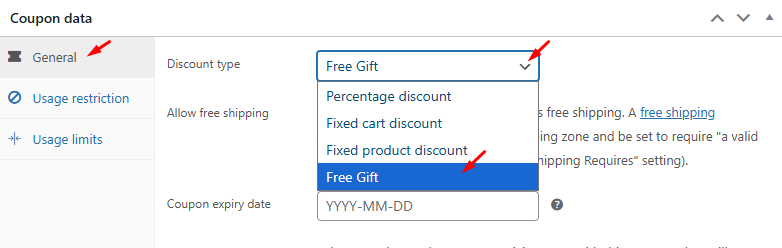
Once you select Free Gift, the Coupon amount field disappears and the Free Gifts section becomes visible below.
Note: If you want to combine a discount and a free gift in a single coupon — for example, 20% off plus a free product — choose Percentage discount (or one of the other discount types) instead of Free Gift. The Free Gifts fields will still appear, and the coupon will apply both the discount and the gift when redeemed.
Step 4: Add the gift product(s) (~2 minutes)
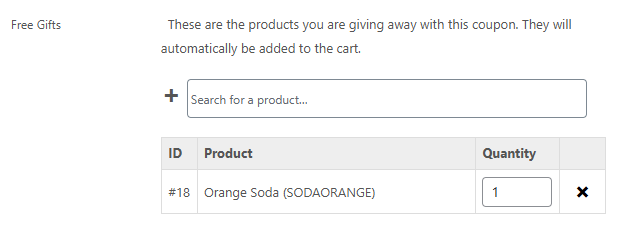
In the Free Gifts field, start typing the name of the product you want to give away. Select it from the search results when it appears.
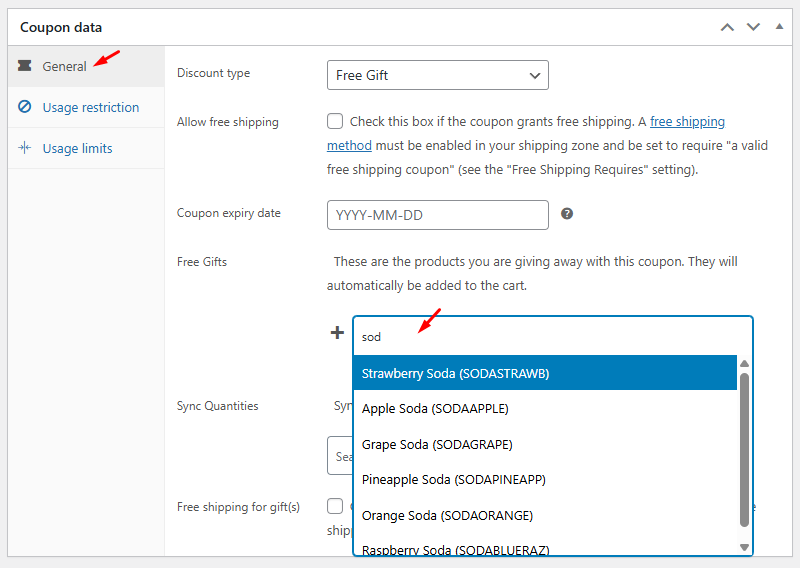
Once selected, the product appears in a table showing its ID, Product name, and a Quantity field. The default quantity is 1 — increase it if you want to gift multiple units.
Step 5: Configure the remaining General tab options (~2 minutes)
With the gift product set, you have a few more optional fields in the General tab to be aware of:
Allow free shipping — this is WooCommerce’s standard coupon free shipping option. Checking it grants free shipping on the customer’s entire order when the coupon is applied. This requires a free shipping method configured in your shipping zones to be set to require “a valid free shipping coupon.” It’s unrelated to the gift product specifically.
Coupon expiry date — set a date in YYYY-MM-DD format if you want the coupon to stop working automatically after a certain date. Leave it blank for no expiry.
Sync Quantities — if you want the gift quantity to scale with how many units of a specific product the customer has in their cart, select that product here. When you do, the plugin automatically adds it to the coupon’s required products list, so the coupon only becomes valid once that product is in the cart.
Free shipping for gift(s) — this is distinct from Allow free shipping above. This FGC-specific option exempts only the gift product(s) from generating a shipping cost. A free shipping method must be enabled in your store for this to work. See WooCommerce’s free shipping documentation for setup details.

Step 6: Set usage restrictions (optional, ~2 minutes)
Free Gift Coupons follow all of WooCommerce’s standard usage restrictions. None of these are required for the coupon to work, but they give you control over when and how often the gift is available.
Switch to the Usage restriction tab to configure:
- Minimum spend — require a minimum cart total before the coupon is valid
- Individual use only — prevent the coupon from being combined with other coupons
- Products — restrict the coupon to carts containing specific products
- Allowed emails — limit the coupon to specific customer email addresses
Switch to the Usage limits tab to configure:
- Usage limit per coupon — the total number of times the coupon can be redeemed across all customers
- Usage limit per user — how many times a single customer can use it
For a full overview of all available options, see WooCommerce’s coupon management documentation.
Step 7: Publish (~1 minute)
When everything looks right, click Publish (or Save draft if you want to come back to it). The coupon is now live.
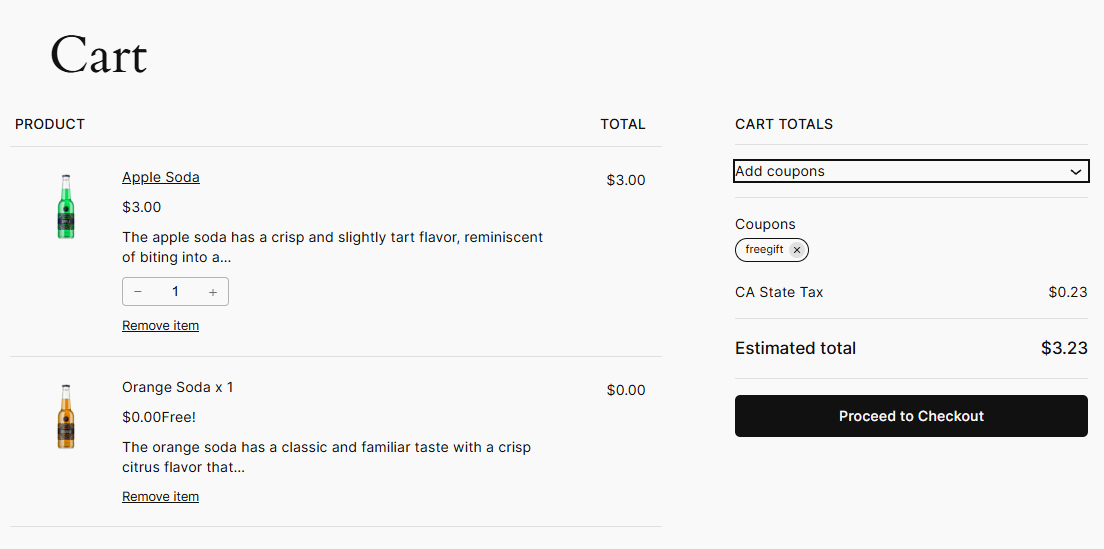
From this point on, when a customer enters the coupon code at checkout, WooCommerce will automatically add the gift product to their cart. The gift shows a price of Free! in the cart and at checkout. If the customer removes the coupon, the gift is removed too.
What’s Next?
- Test before you go live — apply the coupon in a private or incognito window to confirm the gift product appears as expected and that any usage restrictions behave the way you intend.
- Combine with a discount — as noted above, any of the standard WooCommerce discount types (percentage, fixed cart, fixed product) can carry a free gift alongside a discount. If you want to explore that, revisit the Discount type field.
- Sync gift quantities to a purchased product — the Sync Quantities field lets the gift quantity scale with what’s in the customer’s cart. Useful if you want to gift one item for every unit purchased.
- Read the full documentation — the Free Gift Coupons documentation covers additional configuration options and compatibility notes.
If you haven’t picked up Free Gift Coupons yet, you can find it on the WooCommerce marketplace.