Setting Up Name Your Price: Minimum, Maximum, and Suggested Prices Explained
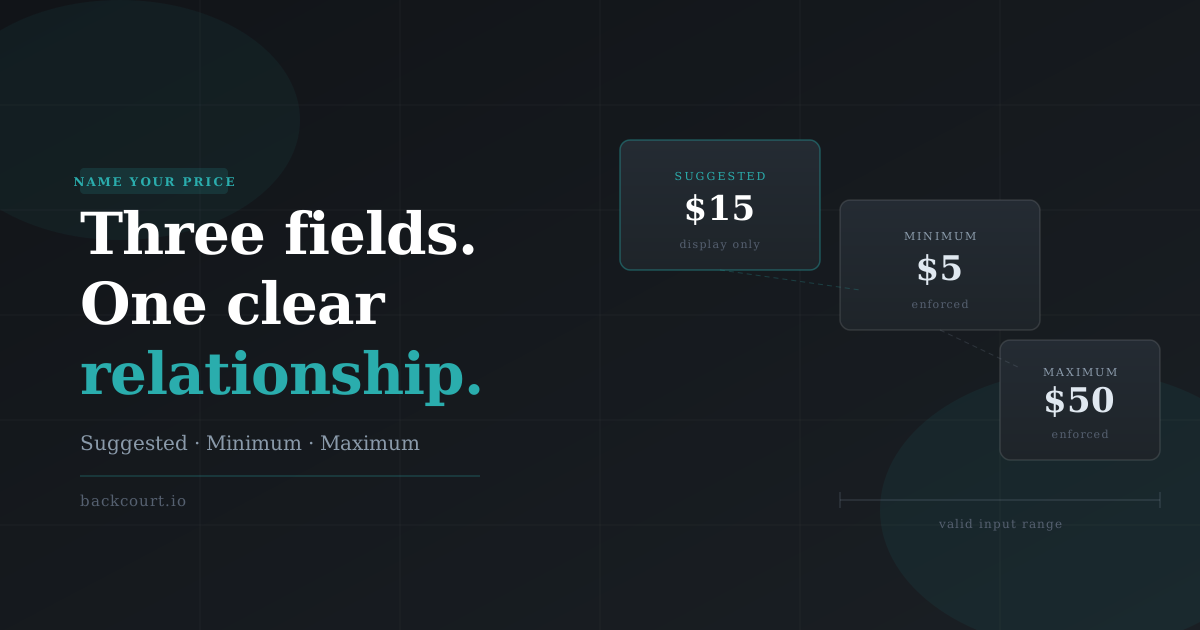
When you first add a Name Your Price product, you’re presented with three price fields: Suggested Price, Minimum Price, and Maximum Price. None of them are required. They’re also not the same thing. And if you set them in the wrong relationship to each other, the plugin will quietly push back.
This guide explains what each field actually does, how they interact, and which combination to use depending on what you’re trying to accomplish.
The Short Version
If you’re in a hurry:
- Suggested Price — the price displayed on the product page. It’s what you’re recommending, not what you’re requiring.
- Minimum Price — the floor. Customers can’t add to cart with anything less.
- Maximum Price — the ceiling. Customers can’t add to cart with anything more.
- All three fields are optional. You can use any combination, or none at all.
Now let’s talk about why each one works the way it does.
Suggested Price: What It Is (and What It Isn’t)
The Suggested Price field sets the price that’s displayed on the product page — shown where the regular price would normally appear, above the price input. It’s your recommendation to the customer: “here’s what we think this is worth.”
What it doesn’t do is fill in the price input for them.
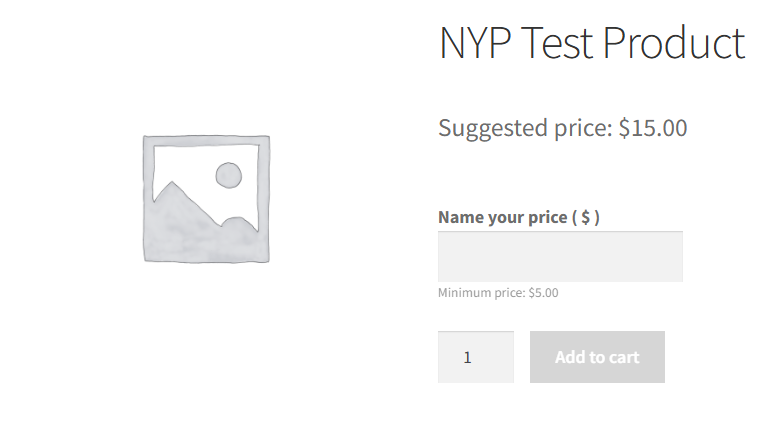
This is one of the most common points of confusion. As of Name Your Price version 3, the price input field starts empty. The customer has to type a number themselves. The Suggested Price sits above that input as a display — it’s framing the conversation, not making a decision.
Why empty by default? Pre-filled inputs create an accessibility problem: screen readers announce a pre-filled value as though it’s already been entered, which can mislead users. An empty input makes it clear that action is required.
When to use it: Anytime you want to anchor expectations without dictating a price. Pay-what-you-want products, donation buttons, and community-supported pricing are all good candidates. It also helps with catalog display — products without a suggested price show no price string at all, which can look unfinished on a shop page.
Minimum Price: The Floor
The Minimum Price is where things get enforced. When a customer tries to add an NYP product to their cart, the plugin checks whether the price they entered meets the minimum. If it doesn’t, they get an error message and can’t proceed.
The error appears on the product page before checkout — so there’s no surprise at the end.

Tip: There’s a Hide Minimum Price checkbox next to the Minimum Price field. Checking this hides the displayed minimum from customers on the frontend while still enforcing it at add-to-cart. This can be useful for stores that prefer a cleaner UI or don’t want to broadcast a specific floor price — but use it carefully, since customers who don’t know there’s a minimum will just see a confusing error.
One important constraint: if you’ve set both a Minimum Price and a Suggested Price, the minimum must be less than or equal to the suggested. Setting a minimum higher than your suggested price will trigger a warning in the admin. The plugin won’t stop you, but it’s a logic error — you’d be recommending a price lower than what you’ll actually accept.
Maximum Price: The Ceiling
The Maximum Price works the same way as the minimum, in the other direction. Enter something above it, and the customer gets an error before the cart.
This one gets used less often, but it’s valuable in specific scenarios: digital products where a “pay what you want” framing is genuine but you want to prevent $9,999 test orders from clogging up your reports, or pricing tiers where you’re moving customers toward a premium option above a certain amount.
How They Work Together
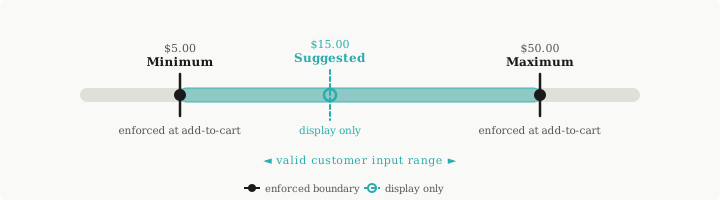
[MEDIA: diagram | nyp-price-field-relationships.svg | A simple horizontal diagram showing the valid input range. From left to right: a “Minimum Price” marker, a “Suggested Price” marker (labeled as display only, not a boundary), and a “Maximum Price” marker. A shaded band between Minimum and Maximum indicates the acceptable range for customer input. The Suggested Price marker sits inside the band but is visually distinguished — dashed line or different color — to show it’s not a validation boundary.]
Here’s the practical summary of how the three fields relate:
Minimum ≤ Suggested Price — The plugin expects the minimum to be at or below the suggested price. If it’s higher, you’ll see an admin warning.
Minimum ≤ Any entered price ≤ Maximum — This is the range the customer’s input must fall within. Both ends are validated at add-to-cart.
Suggested Price is display only — It has no effect on what gets accepted. A customer can enter less than the suggested price as long as they meet the minimum.
Setting the Fields in the Admin
All three fields live in the General tab of the product data panel, alongside the standard WooCommerce price fields.

Common Configurations
Pay What You Want (No Constraints)
Leave all three fields blank. Customers can enter any amount, including zero. Use this for truly open donations or community-supported products where you genuinely don’t want a floor.
Sliding Scale With a Floor
Set a Minimum Price and a Suggested Price. Leave Maximum blank. Customers see your recommendation, can pay more if they want, but can’t pay less than the minimum. This is the most common configuration for progressive pricing — yoga studios, digital downloads, independent creators.
Bounded Range
Set all three. Useful when you have a defined pricing window and want to keep customers within it. The suggested price sits somewhere in the middle as a nudge.
Suggested Price Only
Set only the Suggested Price. No floor, no ceiling — but customers see a reference point. Works well for “name your price, but here’s what others pay” framing.
What’s Next?
If you’re setting up Name Your Price for the first time, the official documentation covers the full configuration — including subscription pricing, variable products, and display options.
If you’re running into unexpected behavior with these fields — customers getting errors you didn’t expect, or prices not displaying the way you anticipated — the support team is a good next step.
And if you haven’t picked up the plugin yet, you can grab Name Your Price on WooCommerce.com.